


 繁體中文
繁體中文Support – Admin Console (macOS)
App Management
App Management (macOS)
- Go to APPLE > VPP > VPP Apps > Sync VPP Apps
- ESP will instantaneously contact Apple’s VPP to grab the most updated Apps list.
- Wait until the process finish.
- Go to APPLE > VPP > VPP Apps and notice the VPP Apps are added.
*AdHoc app is app not listed in App Store
- Go to “App” > “App Management” in ESP MDM Admin Console
- Tap “+ Create New” button
- Tap “AdHoc App”
- Fill in the field and upload .pkg file ( *Maximum file size is 50MB)
- Tap “Save” button to add
- Go to App > App Management
- Tap + Create New button
- Tap Store App
- Input a keyword and tap Search button
- A window pops up with results
- Select the App you want to add

- Check the information which is automatically filled in
- Tap Save button to add
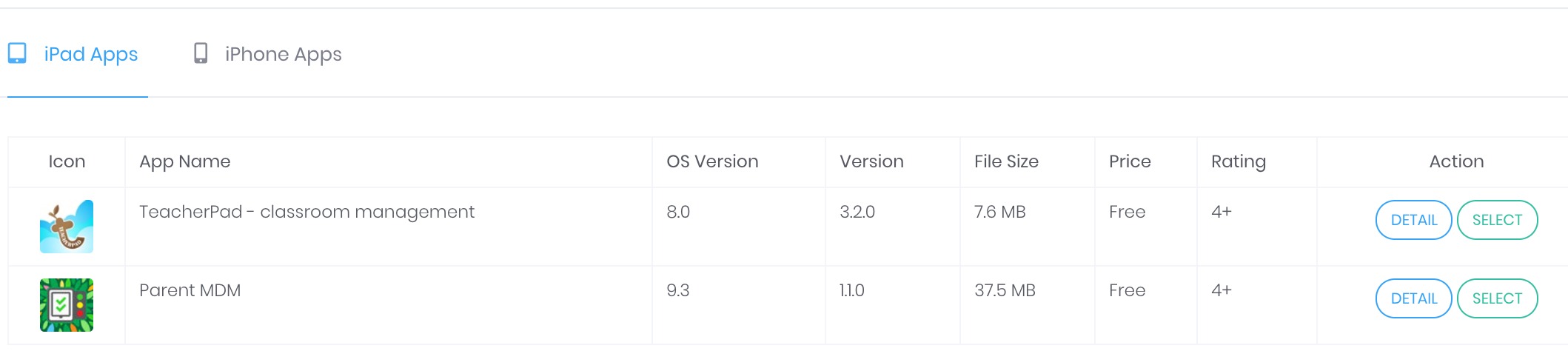
- Go to Device > Device Management
- Select the target device, Action > Apps > Install App > Select the AdHoc App
- Go to Device > Device Management
- Select the target device, Action > Apps > VPP Install > Select the VPP App
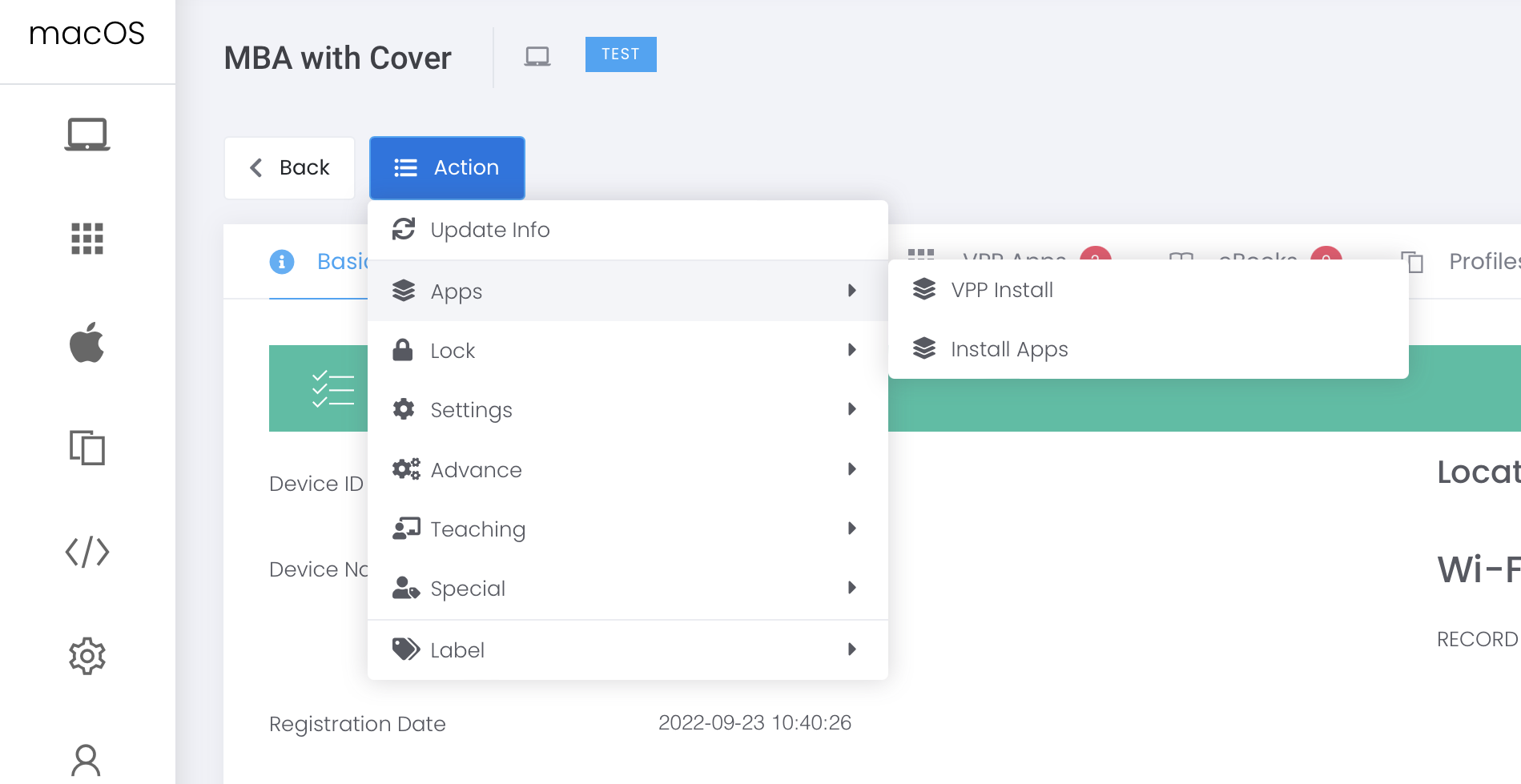 If more than one devices, please use Bulk Action command for installation.
- In case TSS wants to send scripts to macOS Devices via MDM , please make sure eSchoolPadSudoRunner is installed.
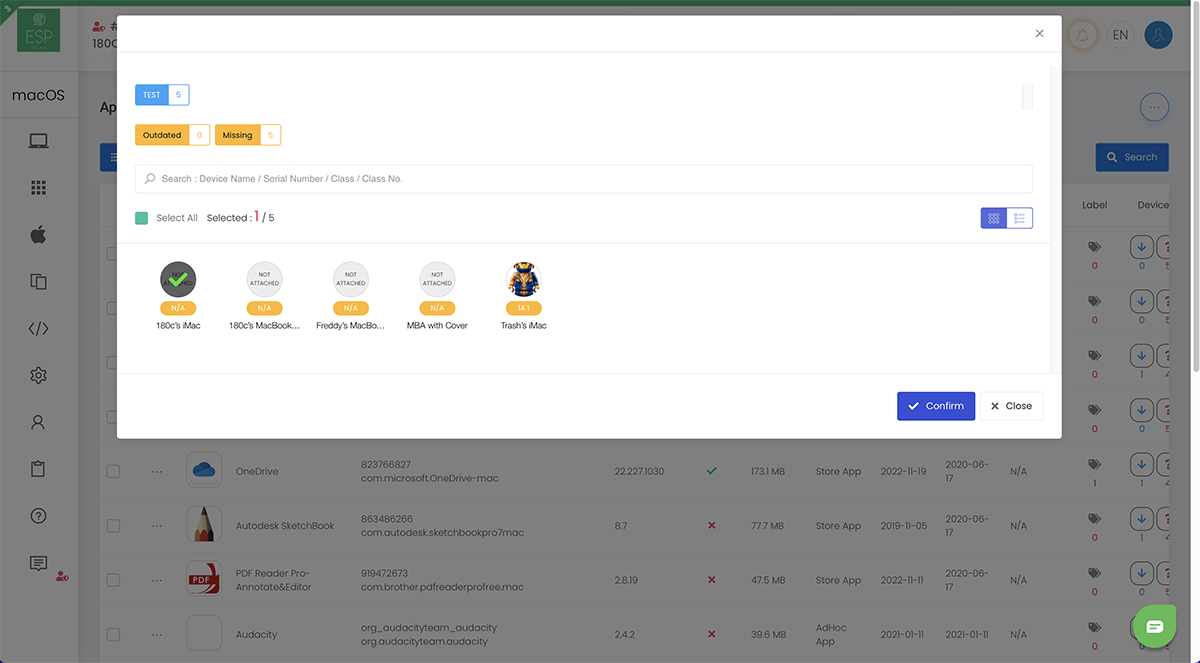
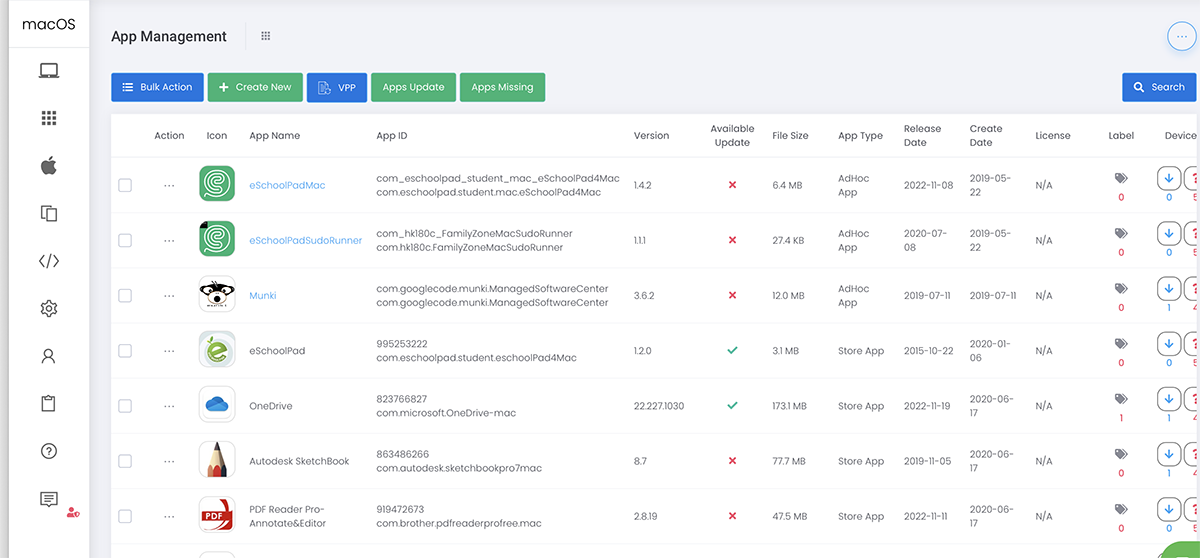 2. Please click Action > Install Apps
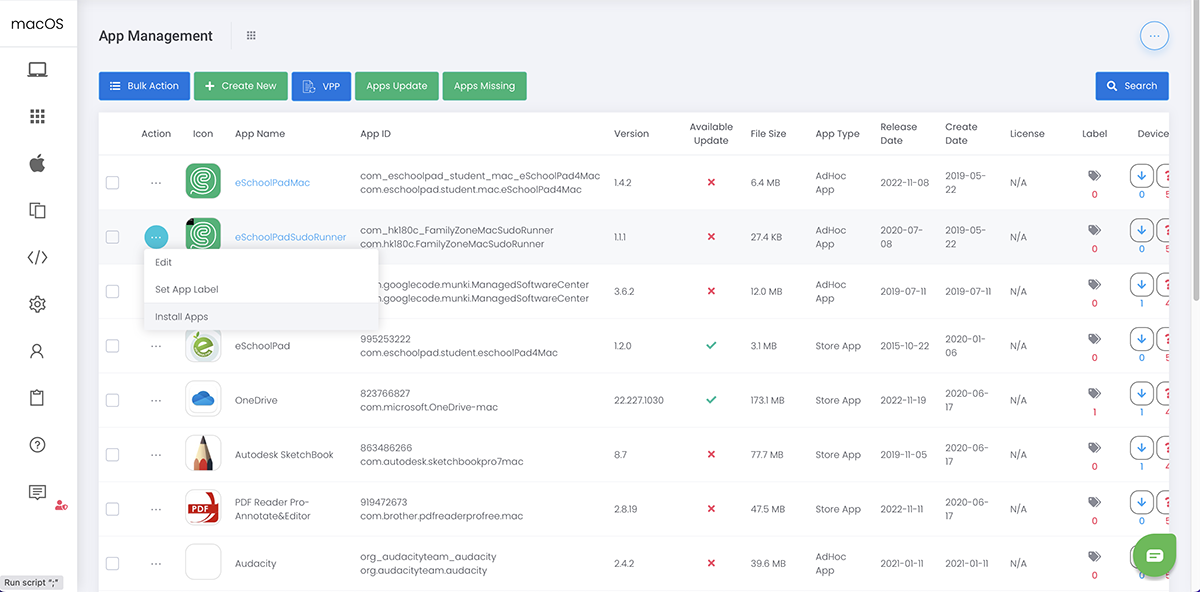 3. Select the device you want to install, then click Confirm to proceed.
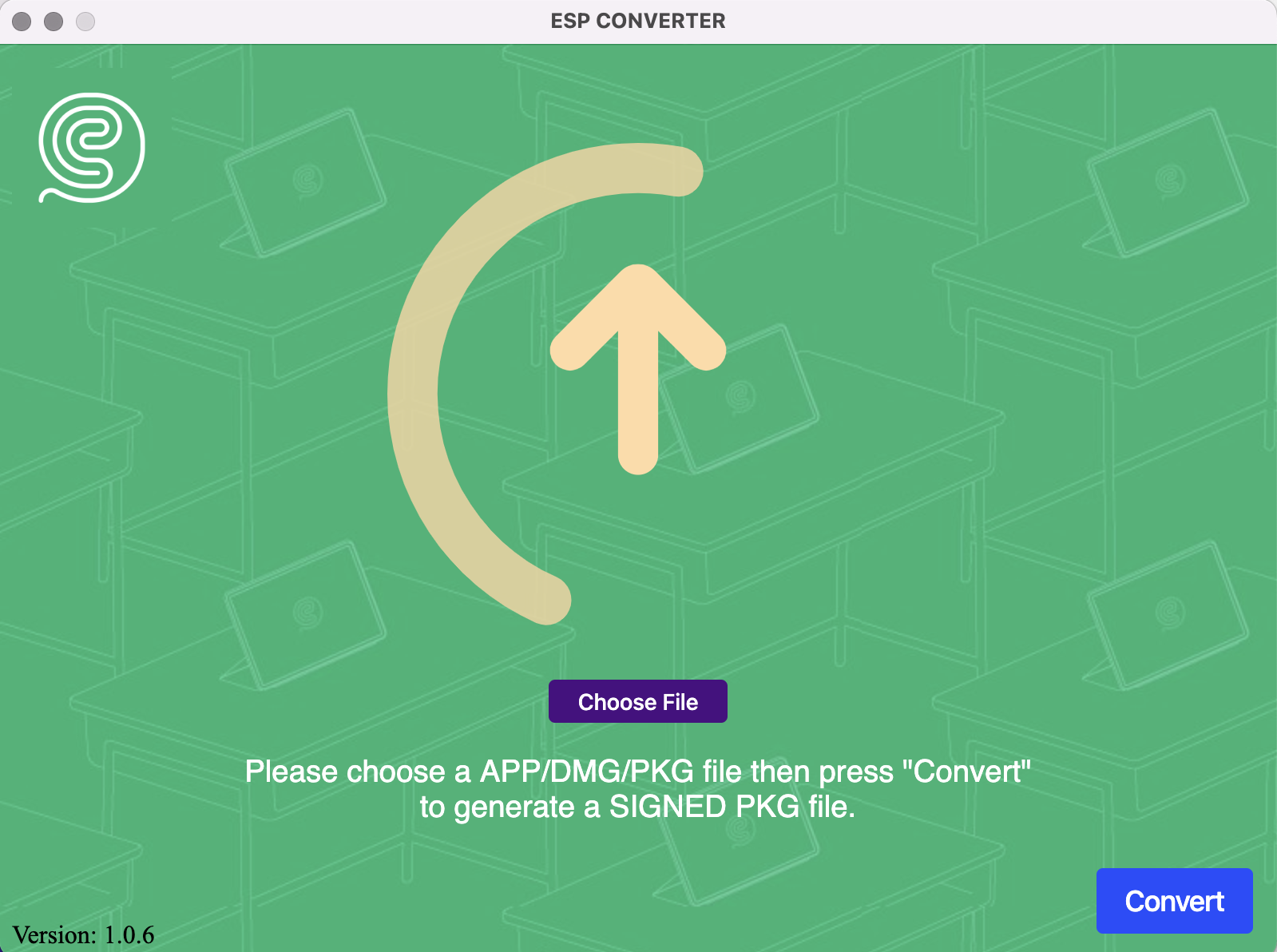
- Run ESP Converter 1.0.6.dmg, provided by 180c Limited Download ESP Converter
- Install ESP Converter on your MAC device ( Some MAC models may request Python 3.0. The converter installer will prompt you download the latest Python.)
- Go to Application > Launch ESP Converter
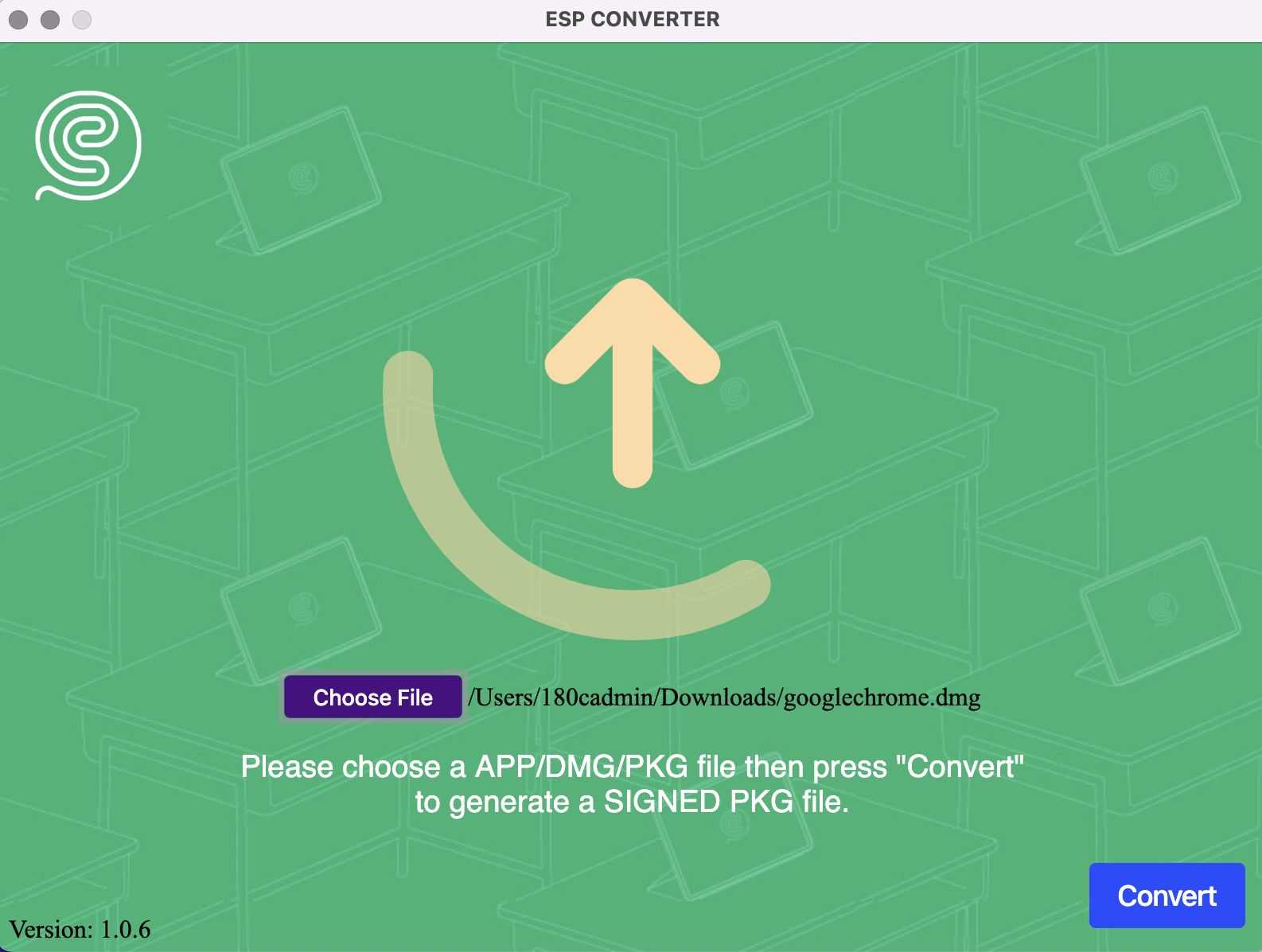
 2.Select a file, then click “Convert”
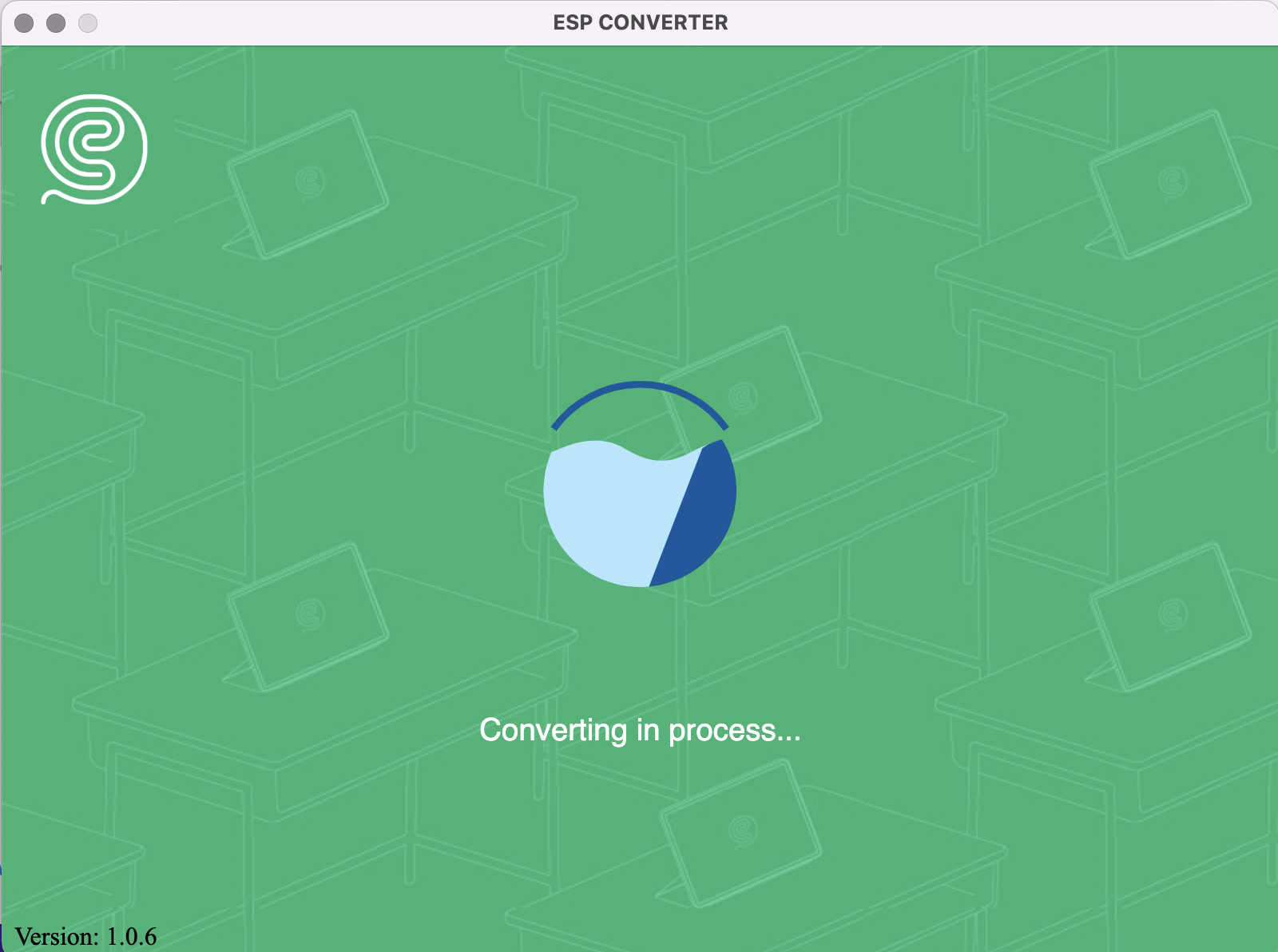
 3. Conversion in process
 4. Done
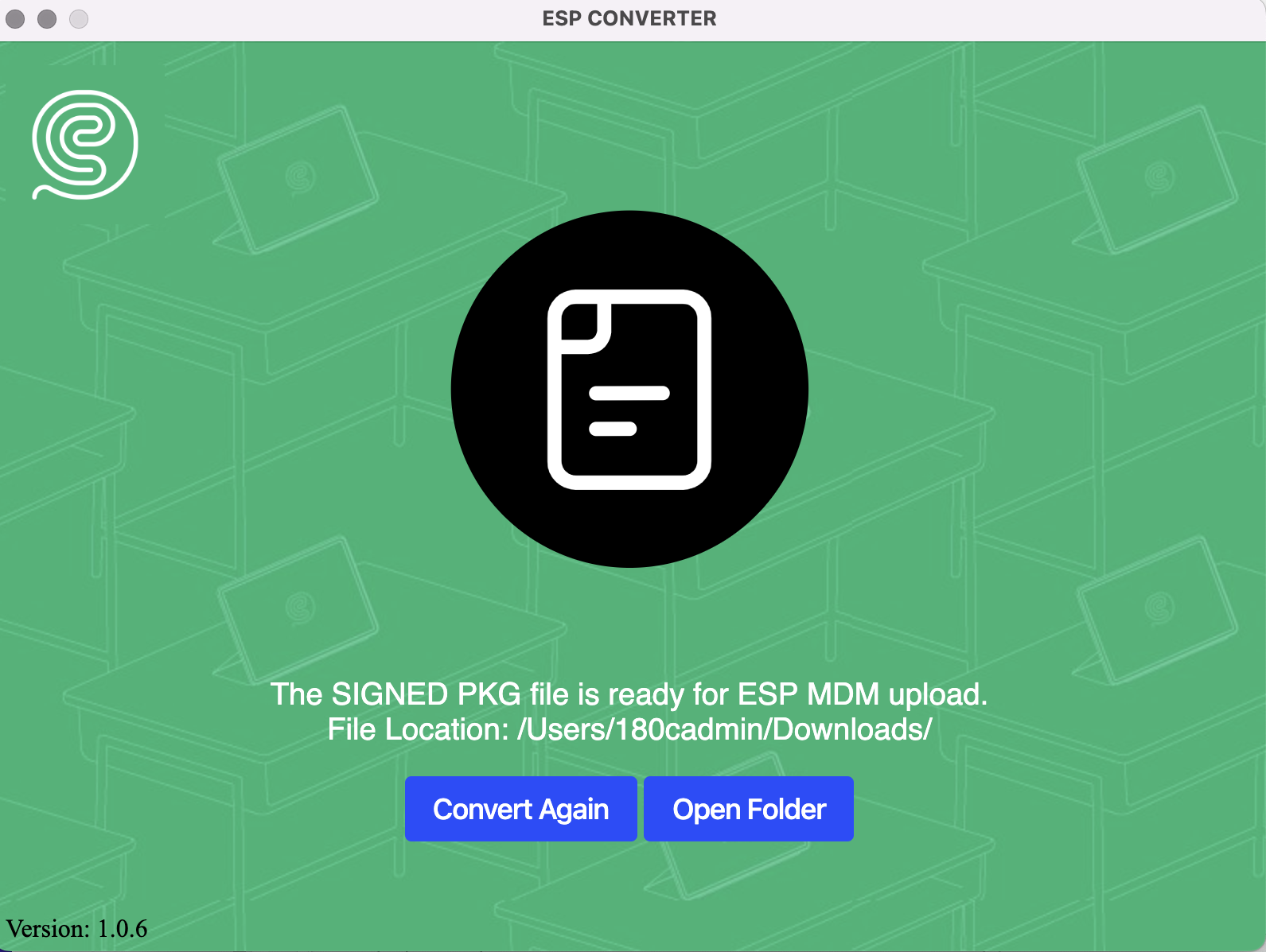
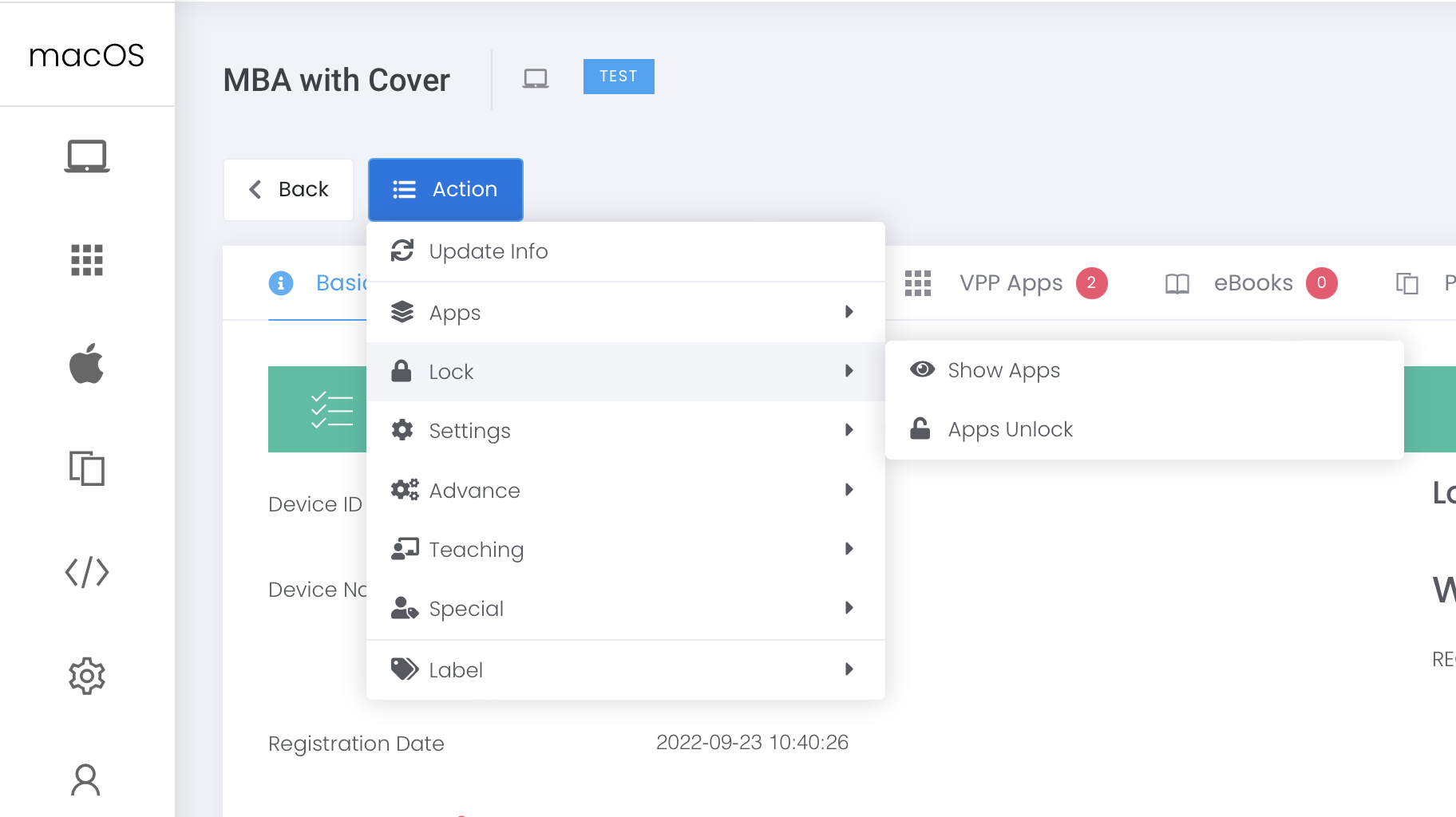
1. Show Apps: Action > Lock > Show Apps
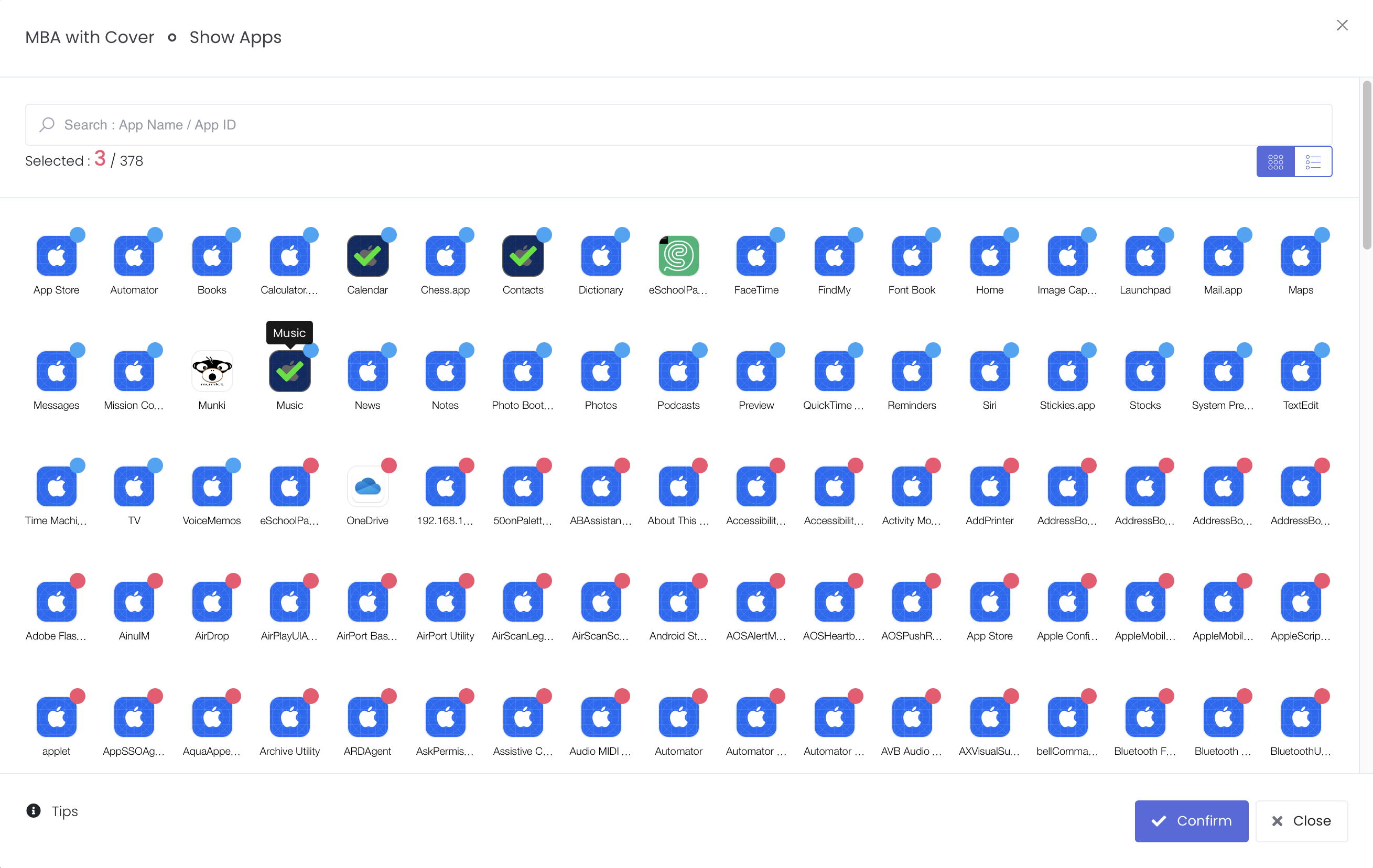
Select the App(s) that you want to active on MAC, then press “Confirm”.
2. Apps Unlock : Action > Lock > Apps Unlock
Resume the device to normal state from “Show Apps” status.
 Select the App(s) that you want to active on MAC, then press “Confirm”.
 2. Apps Unlock : Action > Lock > Apps Unlock
Resume the device to normal state from “Show Apps” status.
2. Apps Unlock : Action > Lock > Apps Unlock
Resume the device to normal state from “Show Apps” status.- First create a profile with web clip :
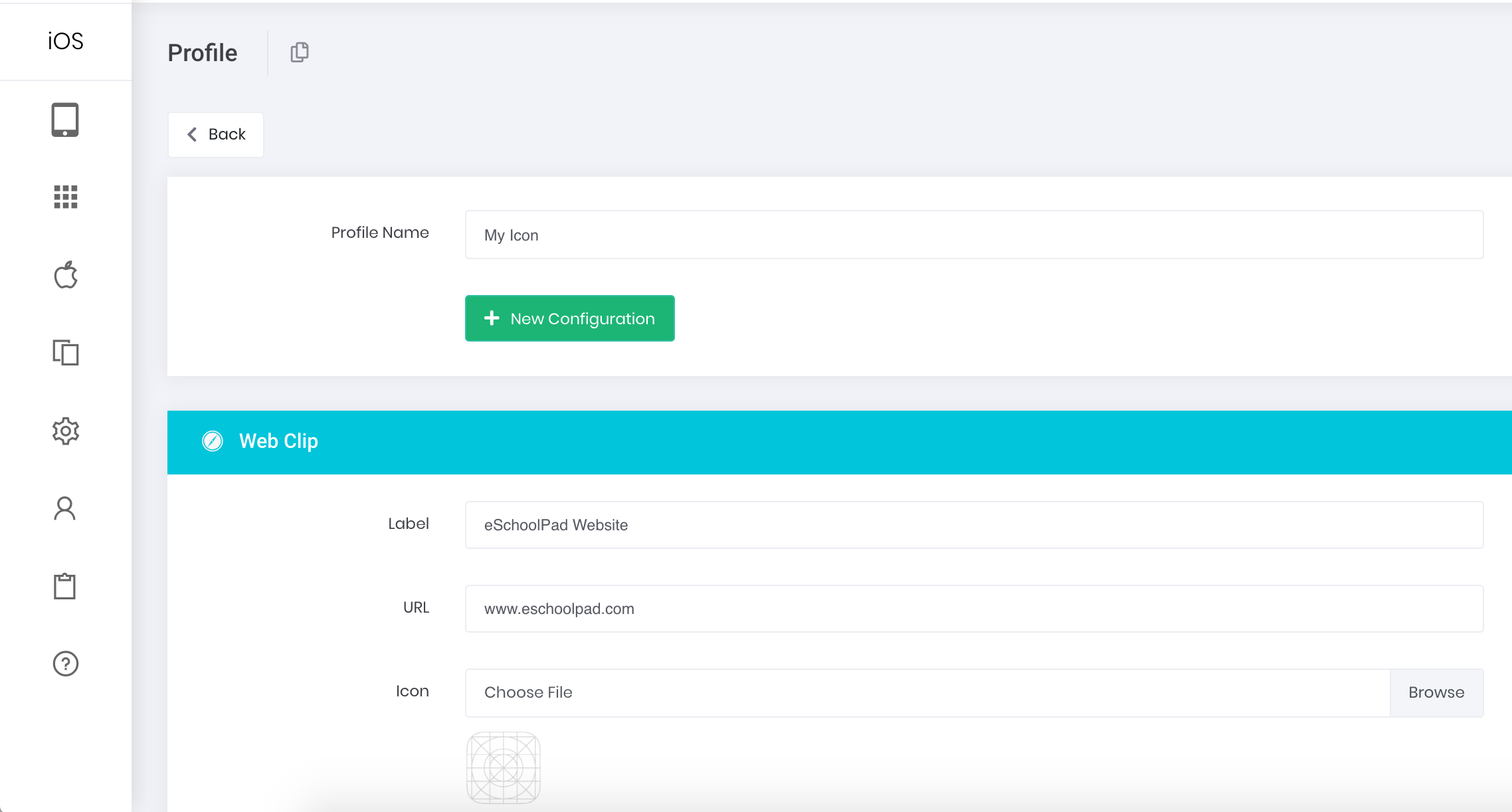
- Go to Profile > Create New > Web Clip
- Provide Profile Name, and tab + New Configuration button
- Select Web Clip from the drop-down
- Provide Label, URL and Icon Image
- Tab Save button
- Then, push onto target devices :
- Select target group of devices in device management Devices > Device Management
- Bulk Actions > Settings > Install Profiles
- Confirm the group of devices
The latest version of eSchoolPad (Mac) is 1.4.2