

 繁體中文
繁體中文Support – Admin Console (macOS)
Device Management
Device Management (macOS)
For the target device ….
- Go to System Settings > Profiles
- Highlight eSchoolpad MDM profile in the list
- Tap – to remove
- Confirm the removal
- Open Applications, scroll to eSchoolPad MDM
- Right clicking and select Move to Bin from the dropdown menu.
- Go to ESP MDM Admin Console, check the device in the device listing, should be “MDM Removed“.
- Tap ! and choose Delete Device Information
- In case TSS wants to send scripts to macOS Devices via MDM , please make sure eSchoolPadSudoRunner is installed.
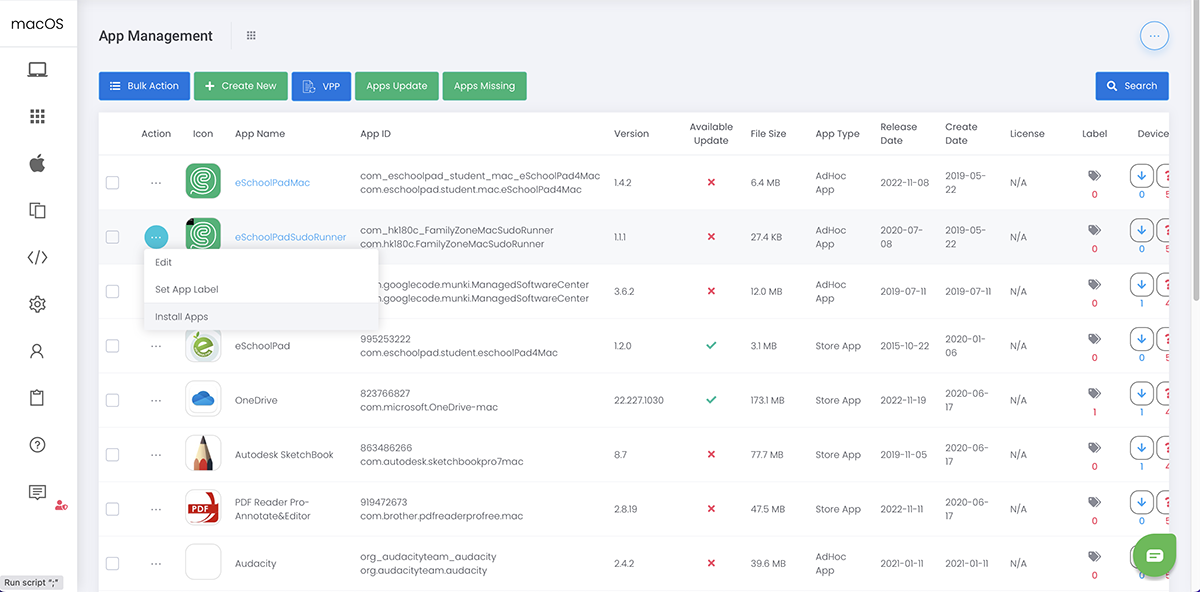
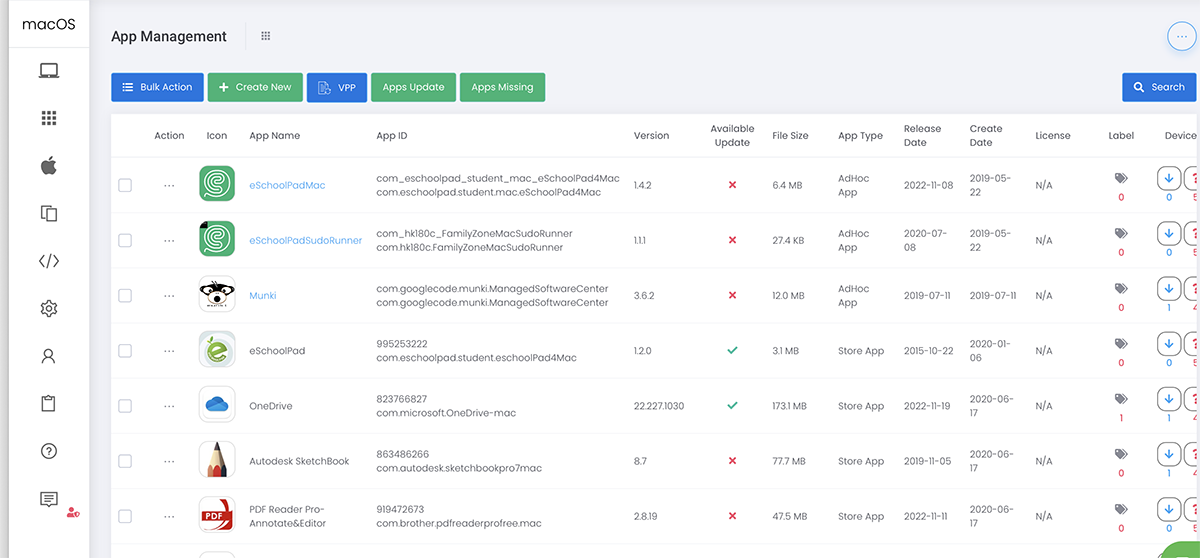 2. Please click Action > Install Apps
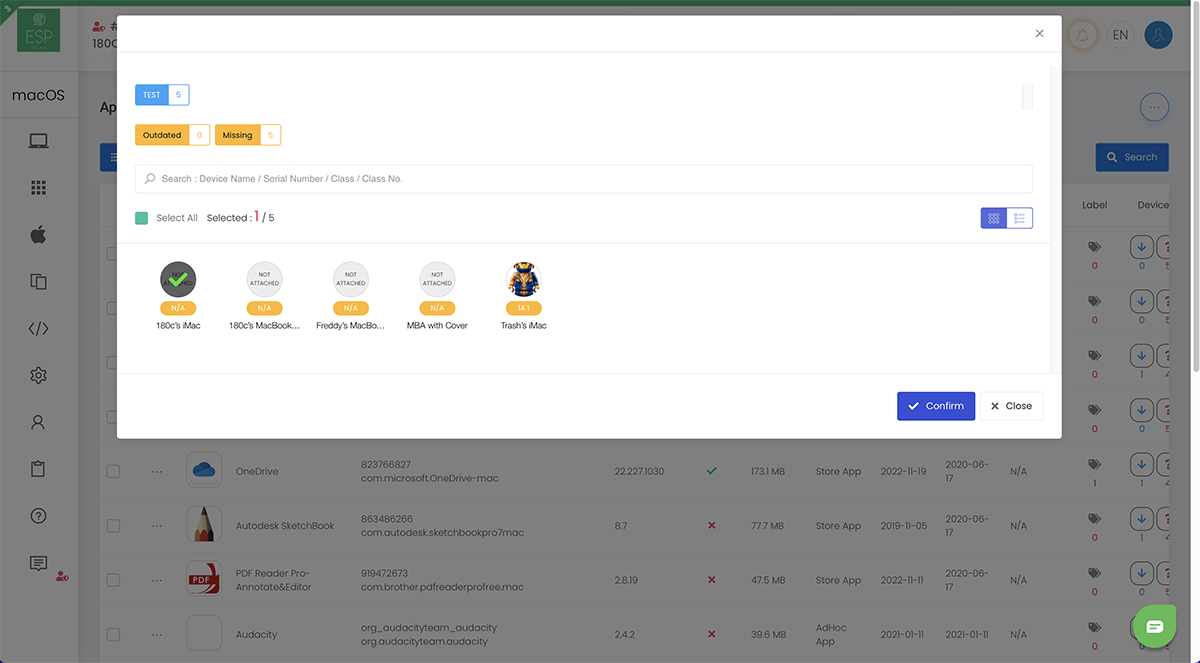
 3. Select the device you want to install, then click Confirm to proceed.
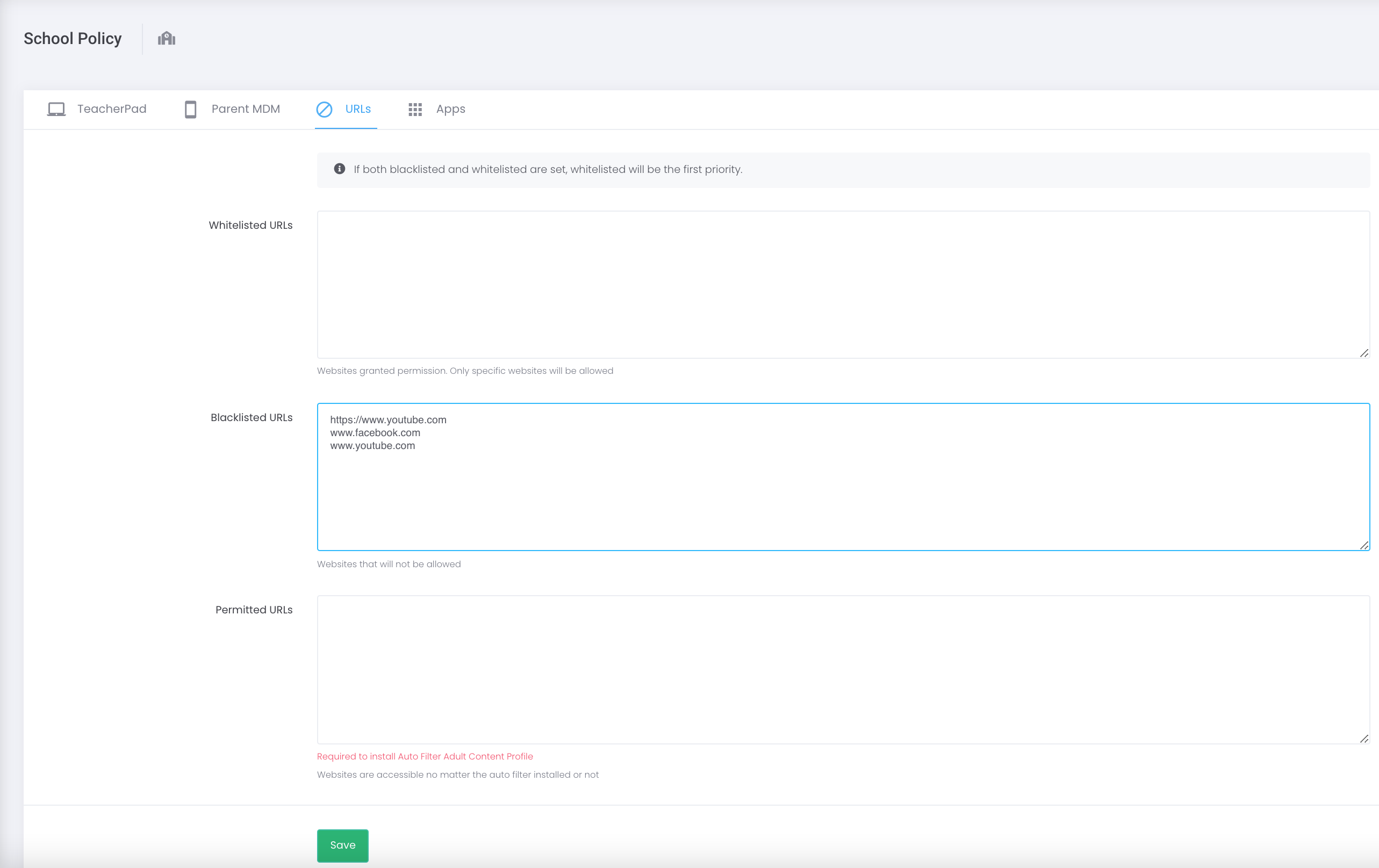
In ESP MDM Admin Console, go to Settings > School Policy > URLs > type URLs if appropriate > Save.
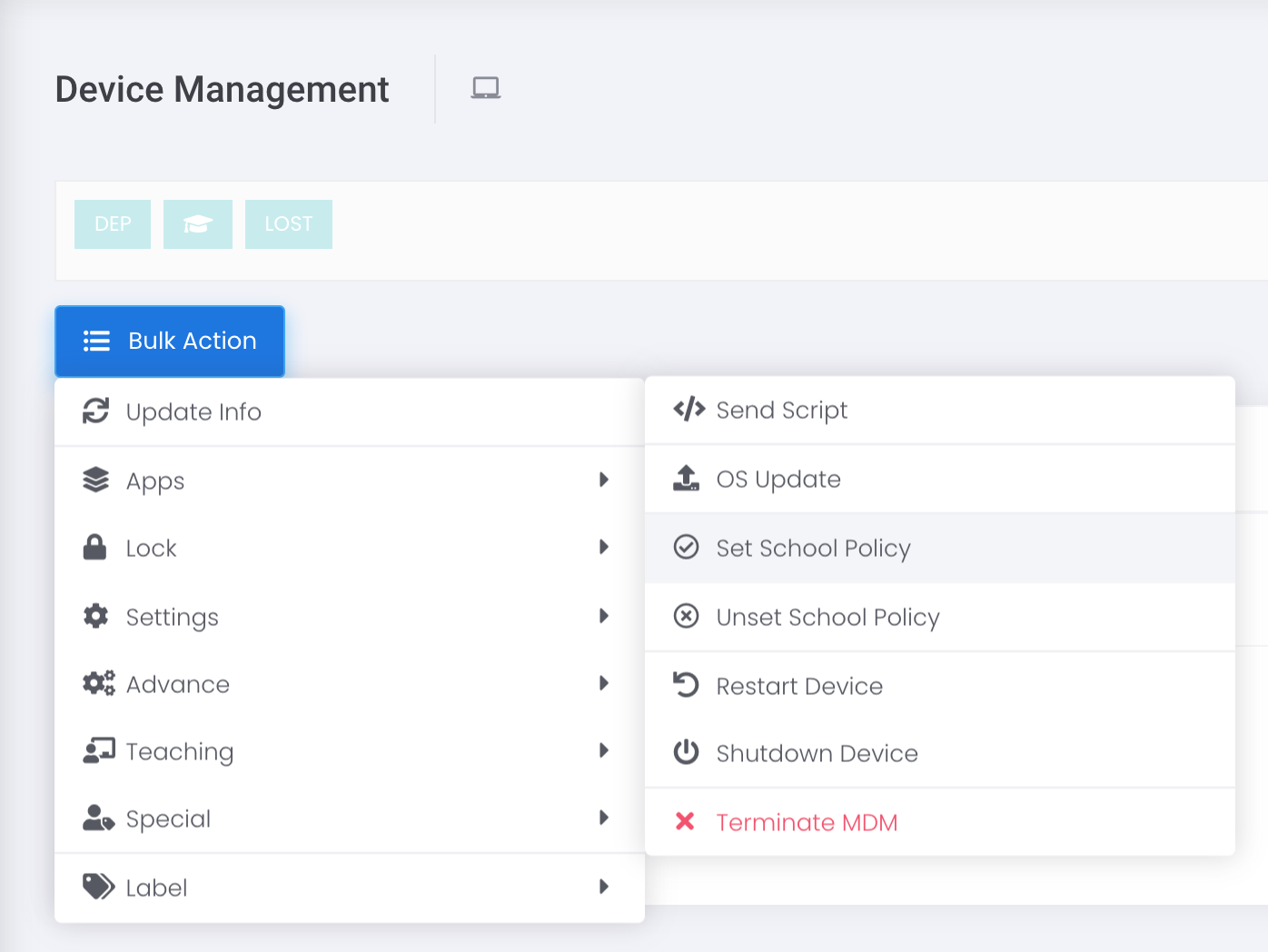
 Then go to Device > Device Management > Bulk Action > Advance > Set School Policy > Select Devices > Confirm, to apply onto the target devices.
 Then go to Device > Device Management > Bulk Action > Advance > Set School Policy > Select Devices > Confirm, to apply onto the target devices.
- On the target macOS device, access a user with administrator role.
- Go to ESP MDM Admin Console > Settings > School info > Certificate Download
- Copy the URL above the QR code.
- Run the URL in the browser to download MDM profiles.
- On your target macOS device, go to Setting > Profiles and install the download eSchoolPad MDM profile.