


 繁體中文
繁體中文Support – ESP 2.0
ESP 2.0 New Features
ESP 2.0 new features walkthrough.
New Features
- In case TSS wants to send scripts to macOS Devices via MDM , please make sure eSchoolPadSudoRunner is installed.
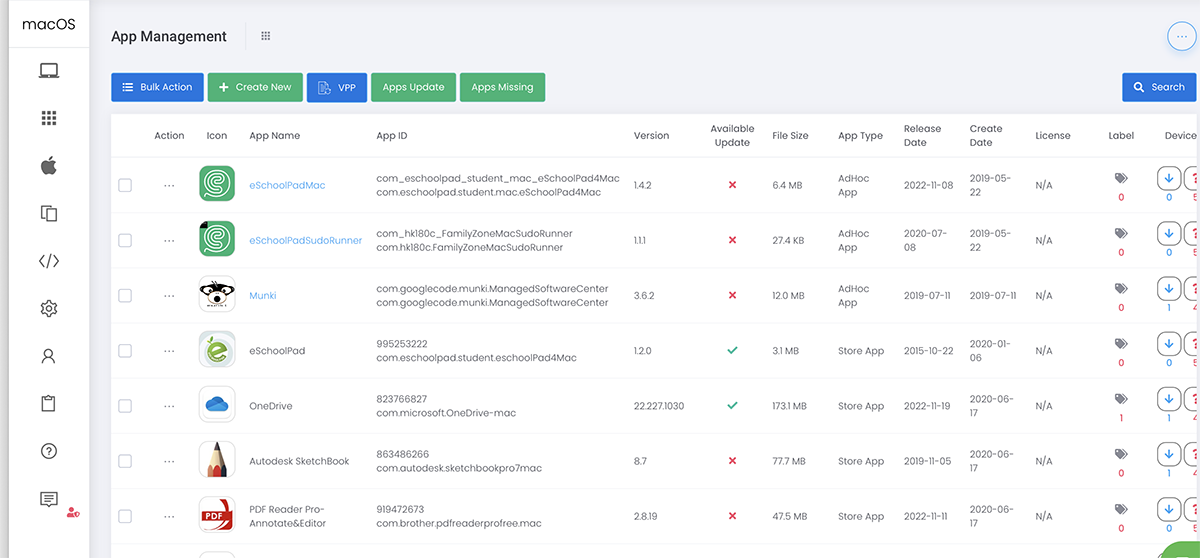 2. Please click Action > Install Apps
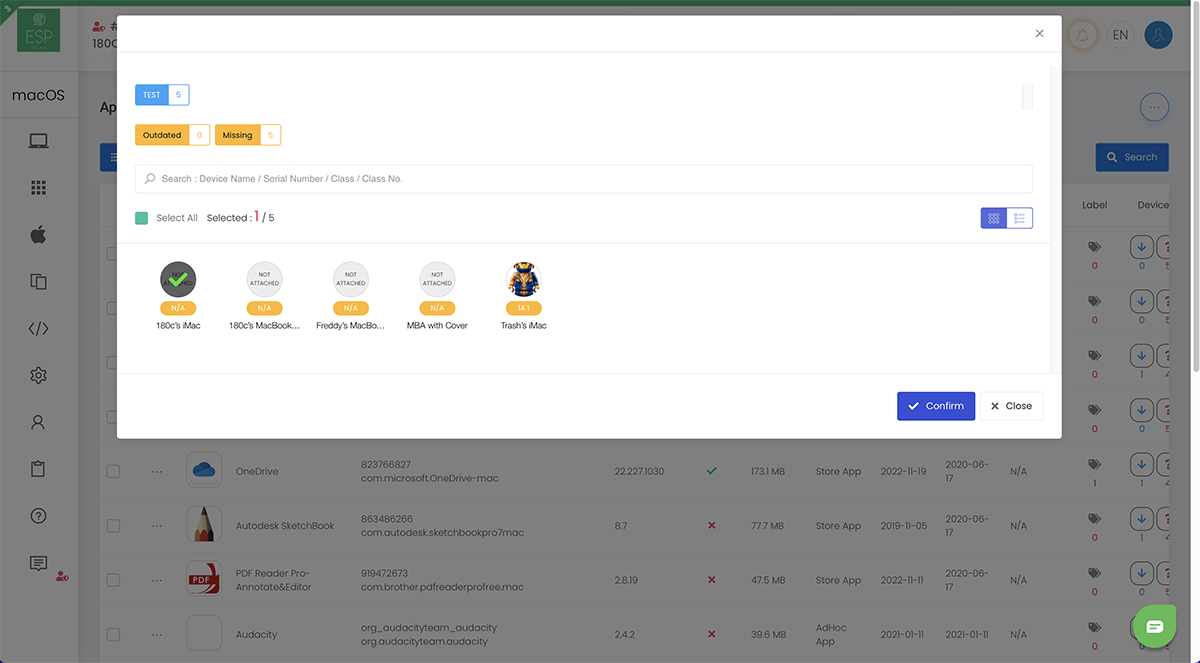
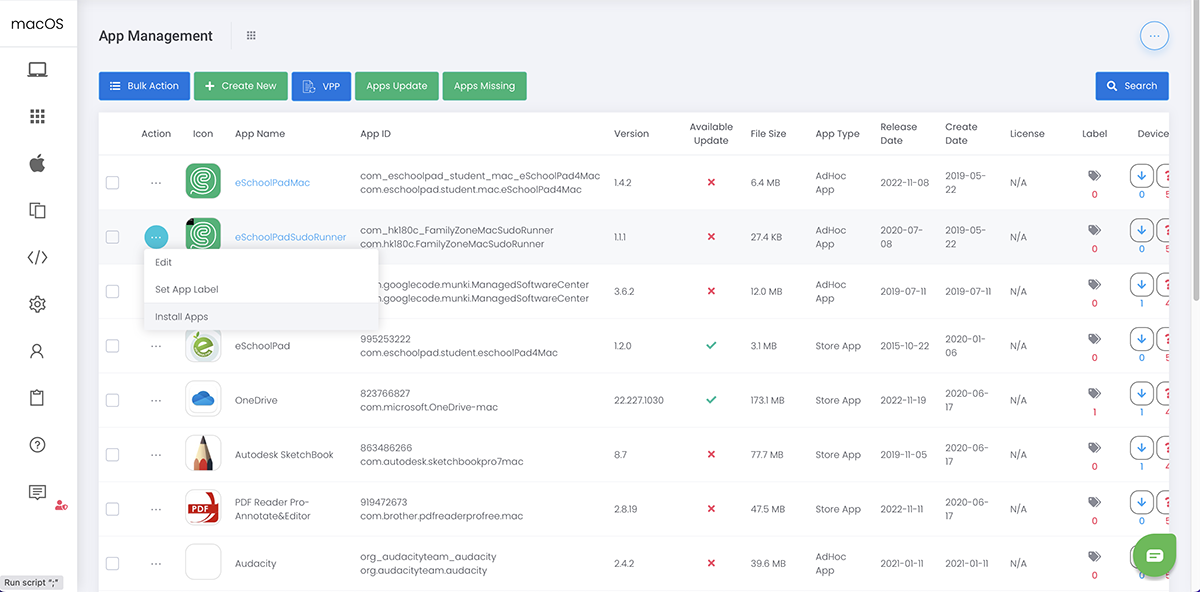 3. Select the device you want to install, then click Confirm to proceed.
- Run ESP Converter 1.0.6.dmg, provided by 180c Limited Download ESP Converter
- Install ESP Converter on your MAC device ( Some MAC models may request Python 3.0. The converter installer will prompt you download the latest Python.)
- Go to Application > Launch ESP Converter
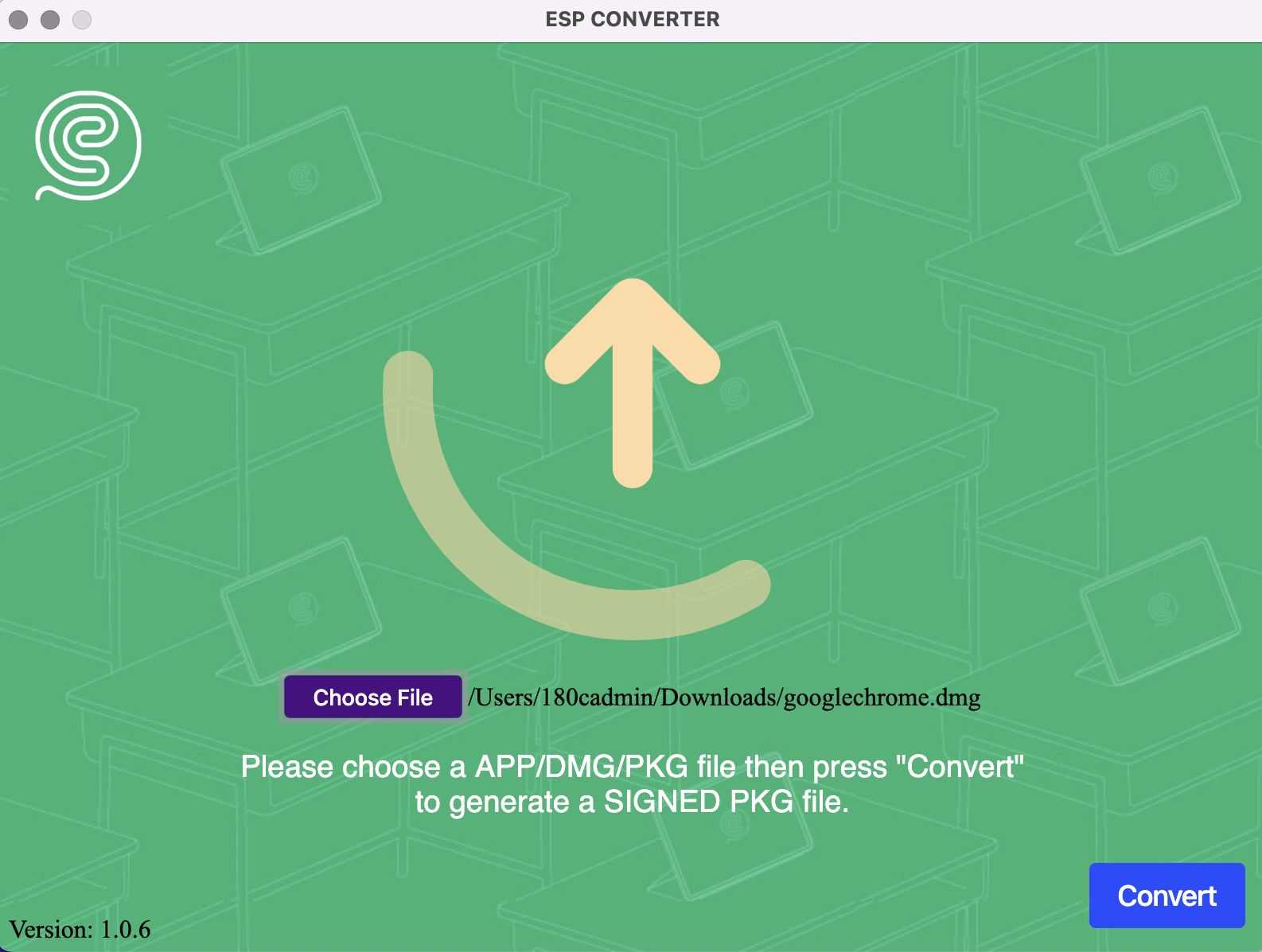
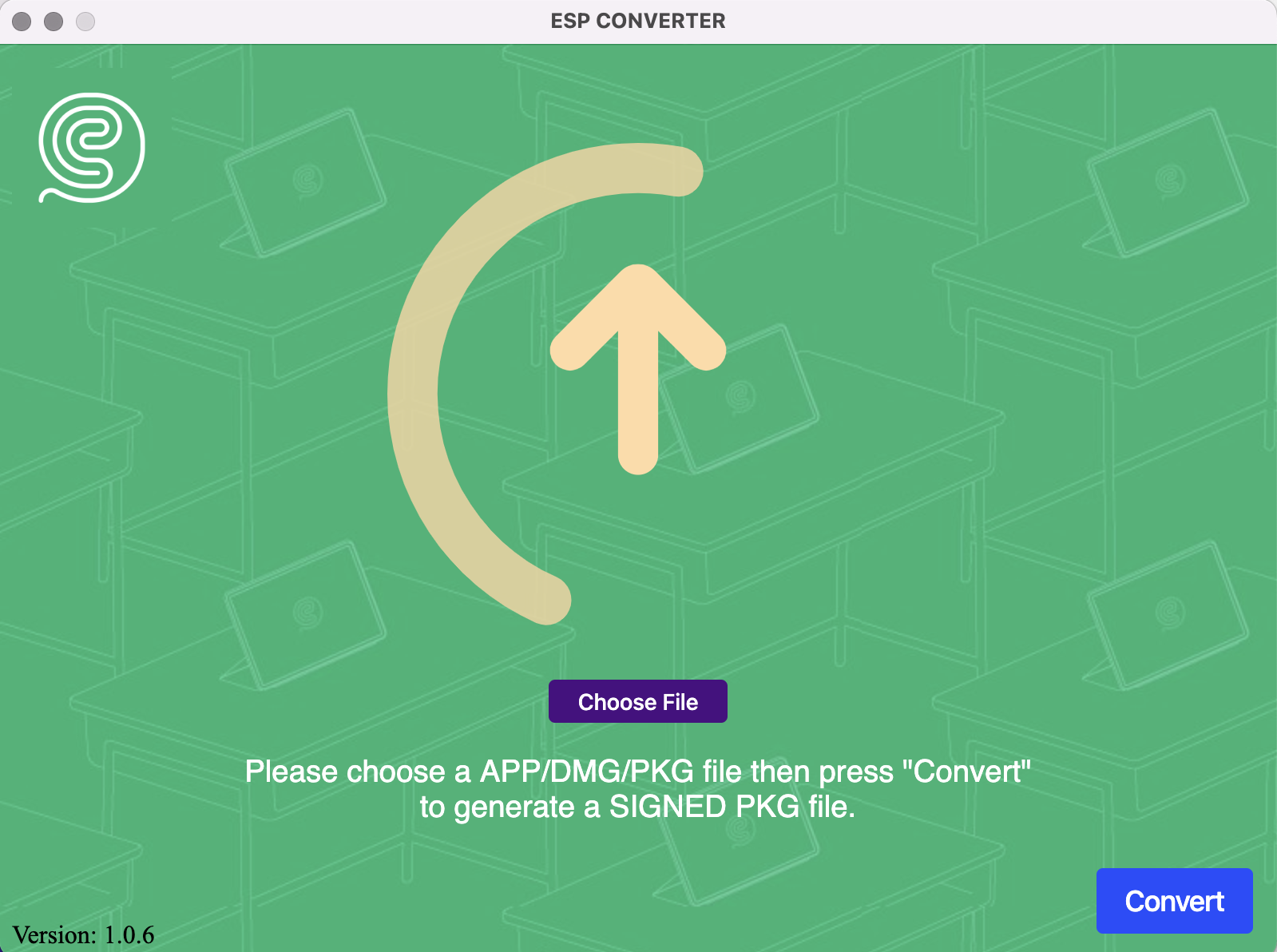 2.Select a file, then click “Convert”
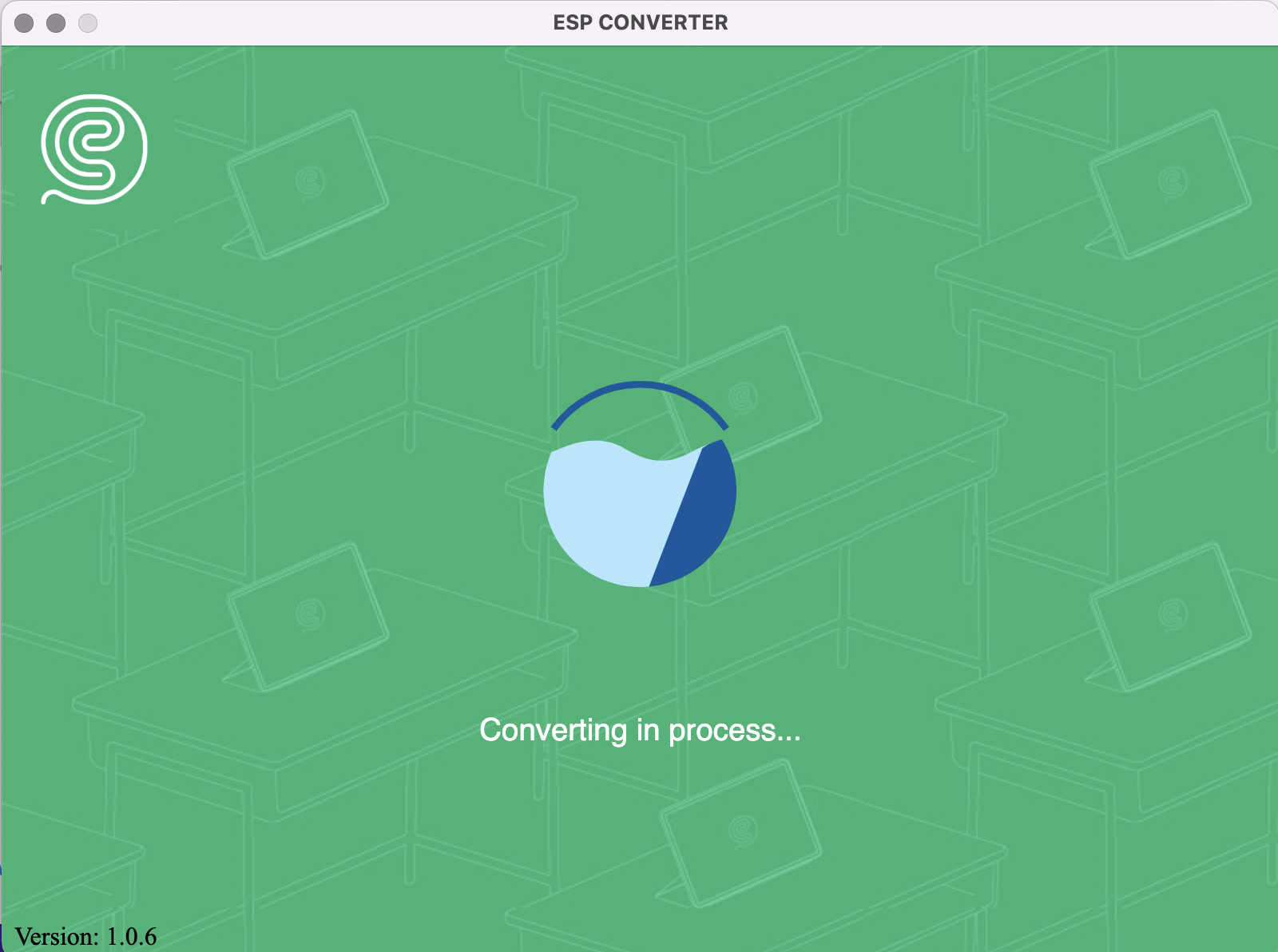
 3. Conversion in process
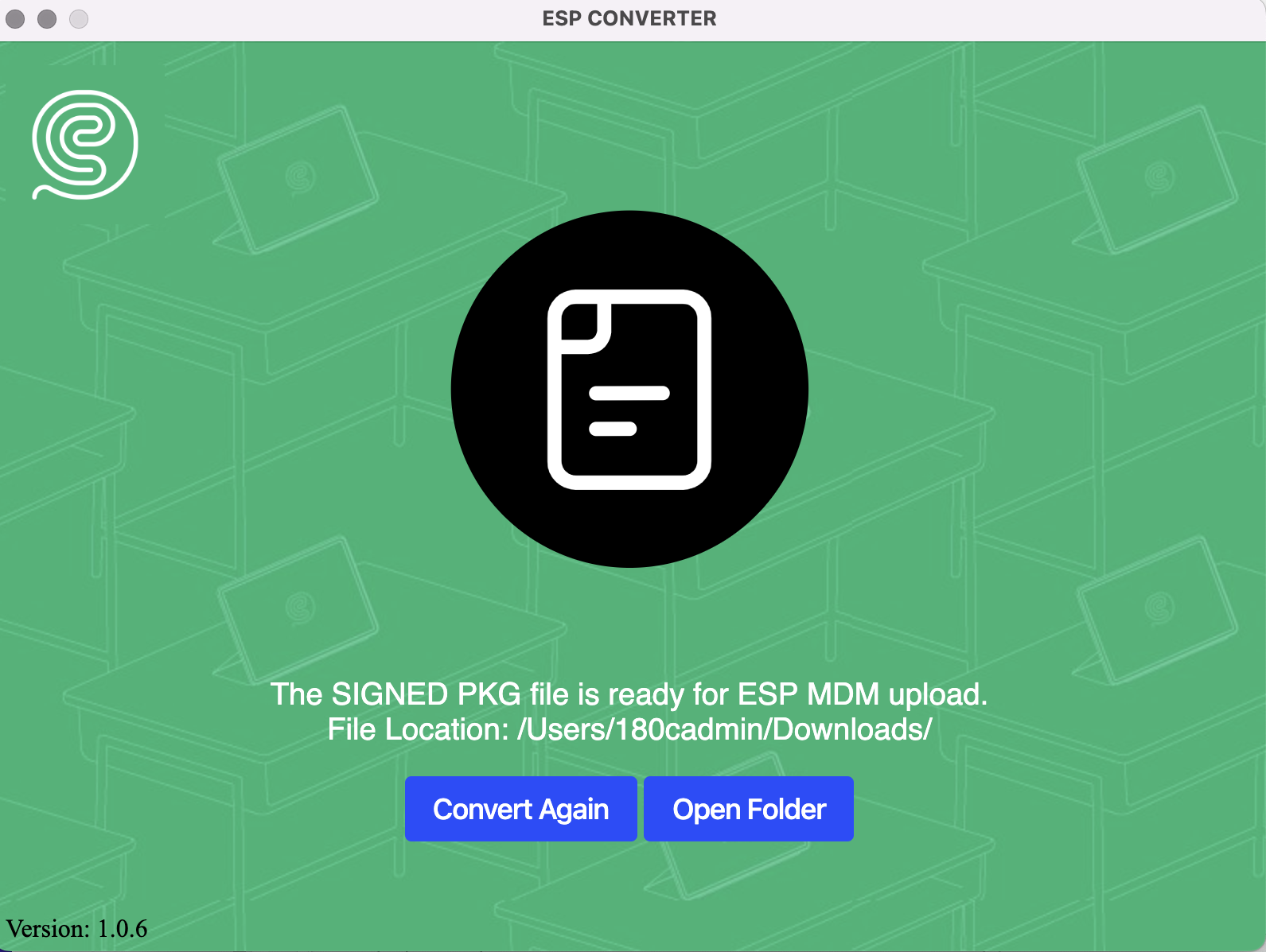
 4. Done
The latest version of eSchoolPad (Mac) is 1.4.2
You may now assign device labels to devices by uploading .csv file
“Device” > “Device Management” > “ ⋯ ” on top right corner > “Assign Device Label from Excel”
Application: Reassign device labels for new school terms.
Suggested steps:
- Enroll all new devices
- Prepare an excel with columns: SerialNumber, Labels (multiple labels are separated by semicolon ; )
- Remove existing device labels by “Device” > “Device Labels” > Check Labels to be Deleted > “Bulk Action” > “Delete > “Confirm” to Delete
- “Device” > “Device Management” > ” ⋯ ” on top right corner > “Assign Device Label from Excel” > Choose the Excel file > “Upload”