


 繁體中文
繁體中文Support – Admin Console (Win)
FAQs
FAQ (Win - Admin)
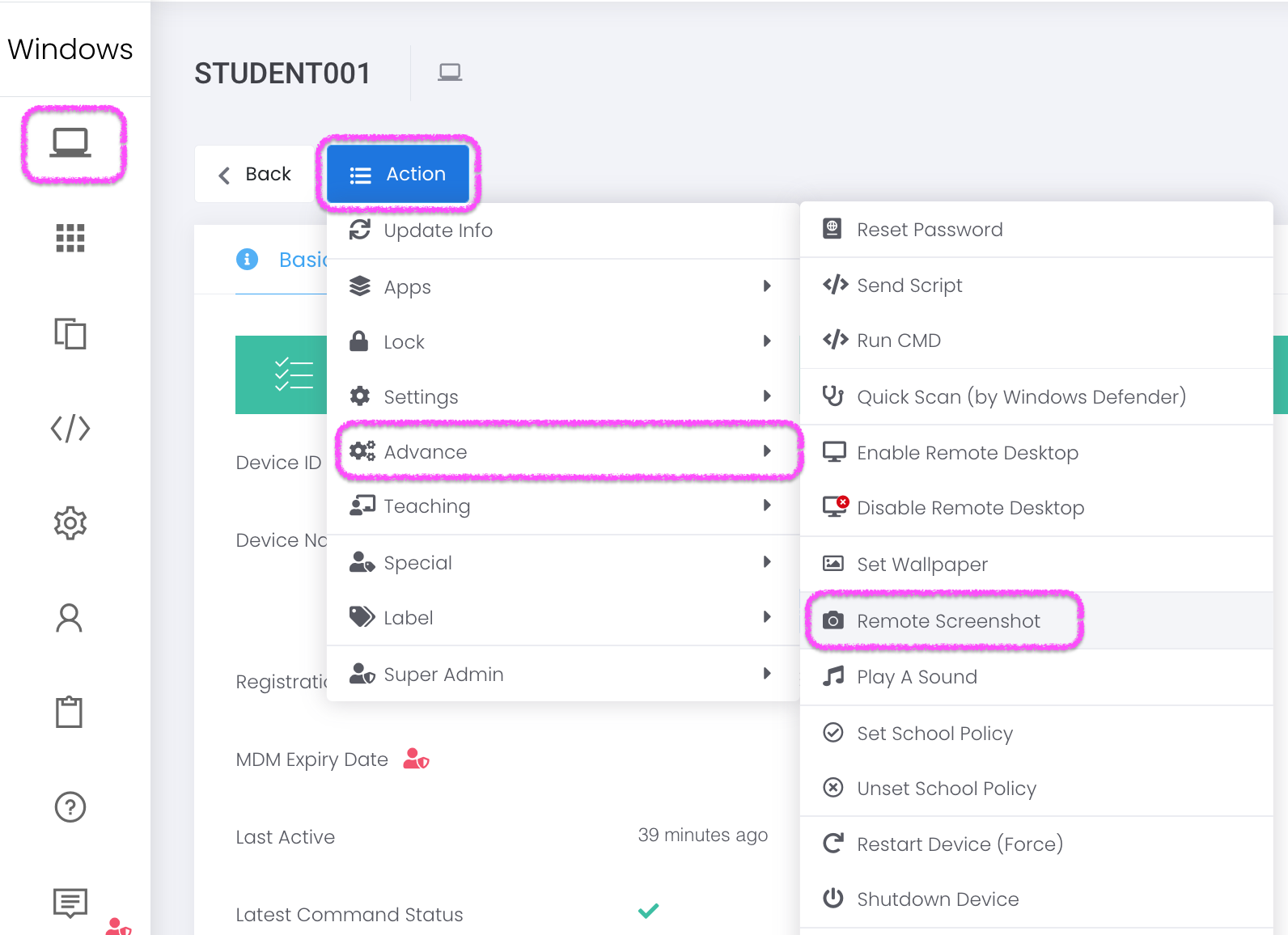
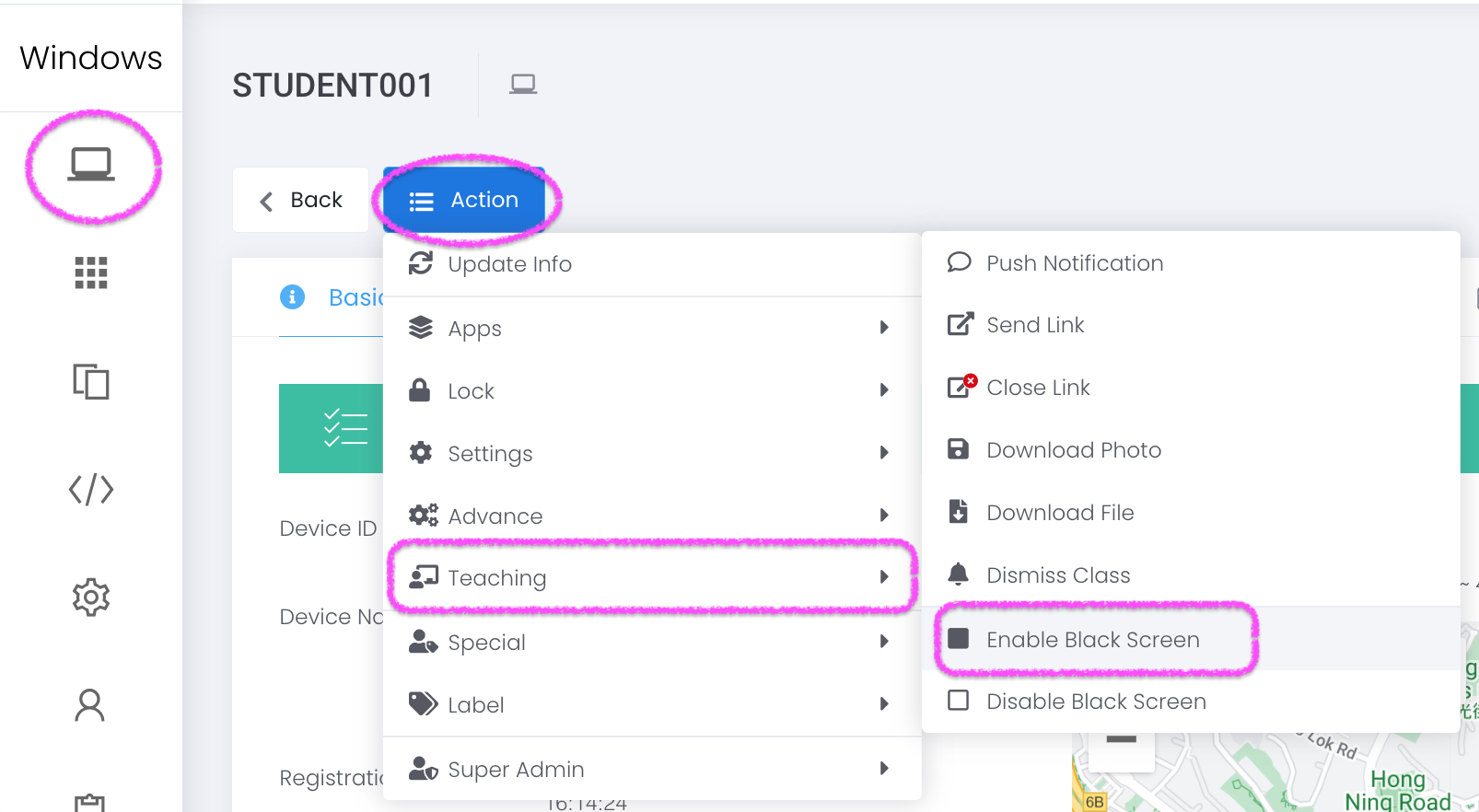
In ESP MDM Admin Console, go to Device > Device Management > Bulk Action > Teaching > Enable Black Screen > Select Target Devices > Confirm.
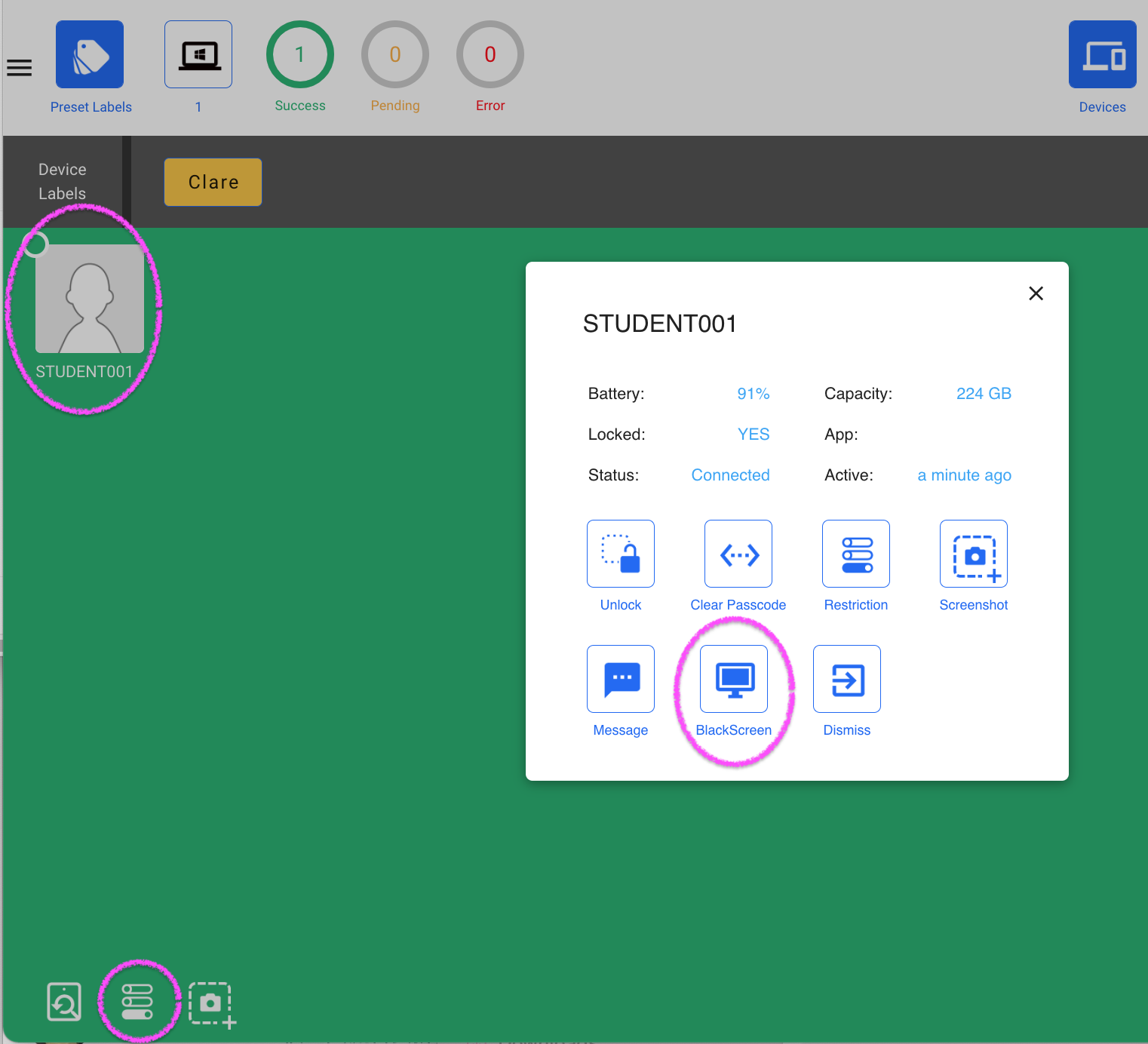
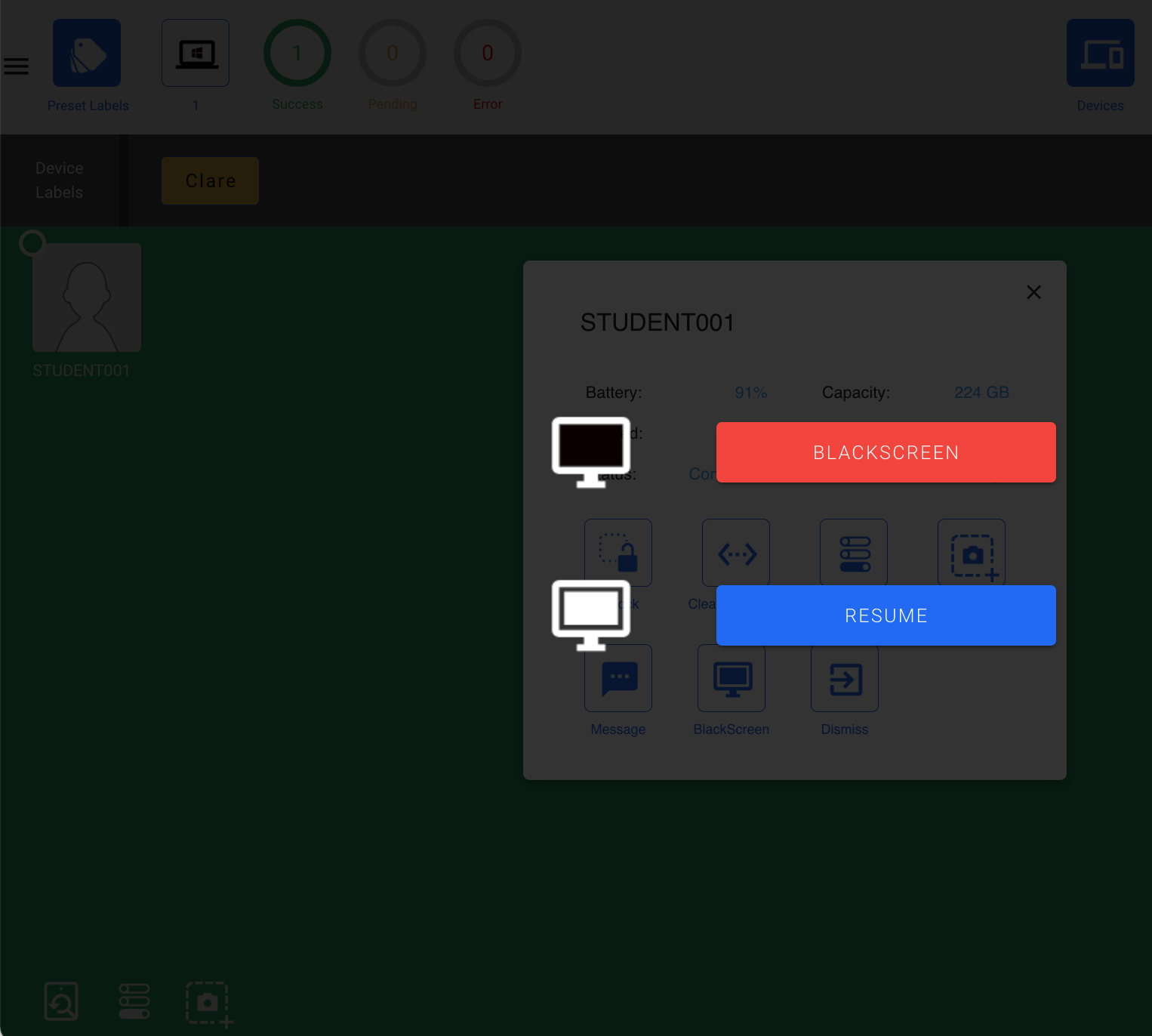
In TeacherPadPlus (https://www.eschoolpad.net/teacher) , go to Devices > Settings > Blackscreen > Blackscreen.
- Windows 10 Pro (x64)
- Windows 10 Education (x64)
- Windows 10 Enterprise (x64) edition
Yes. ESP support multiple blueprints
- Go to “Settings” > “Blueprint” > “+ Create New”
- Provide Name and Select Target Devices, and set profiles, wallpaper, or install apps
- Tab “SAVE”
- Go to “Profile” > “Create New”
- Provide “Profile Name and tab “+ New Configuration”
- Select “Wi-Fi” from the dropdown
- Provide SSID and Password accordingly
- Tab “SAVE” button
* If you want to apply to a group of devices, please go to “Device” > “Device Management” > Select a Device Label > “Bulk Actions” > “Settings” > “Install Profiles” > Select device(s) and profile(s) > “Confirm”
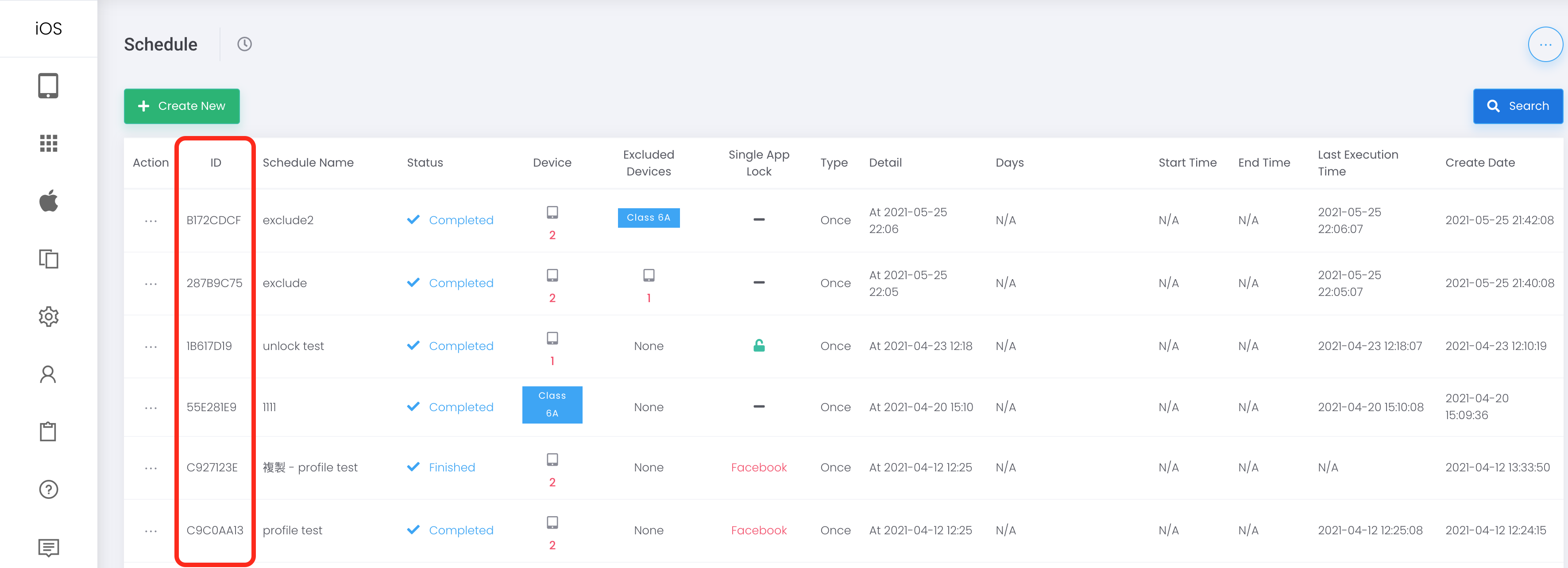
This is a 8-character strings uniquely identify each schedule created. This can be used to specify a schedule when reporting an issue.
You can now set a schedule to enable and disable BlackScreen. Simply find the optional “Enable Black Screen” and “Disable Black Screen” in Extra Step in Schedule.
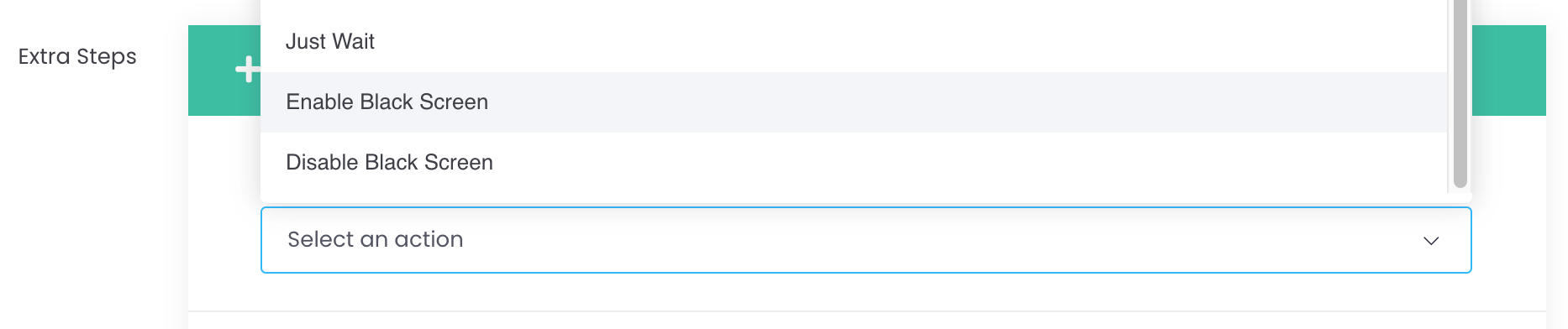
Application:You may consider using this feature as Sleeping mode at night time for BYOD students.
Note:This feature is similar to Single App Lock to ESP (Student), thus involve battery consumption. Recommend connecting to power source while in use of Blackscreen with Schedule.