

 繁體中文
繁體中文Support – TeacherPad+ (Win)
FAQs
FAQ (Win-TeacherPad+)
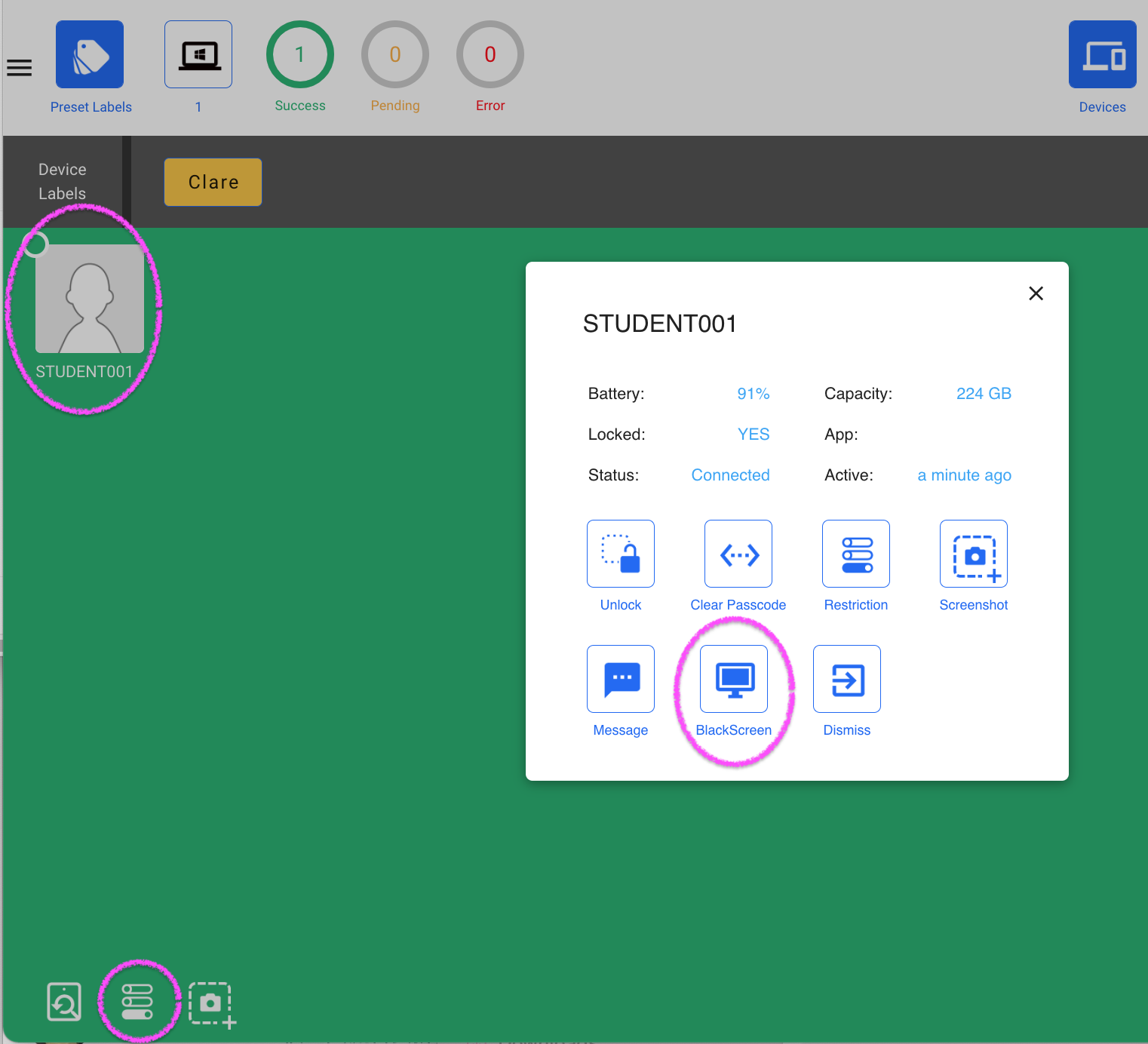
After entering classroom (device label) with Teacherpadplus, you can take individual device screenshot or in bulk.
The screenshots will be available for viewing individually for 5 minutes. After 5 minutes, teacher can then screenshots again.
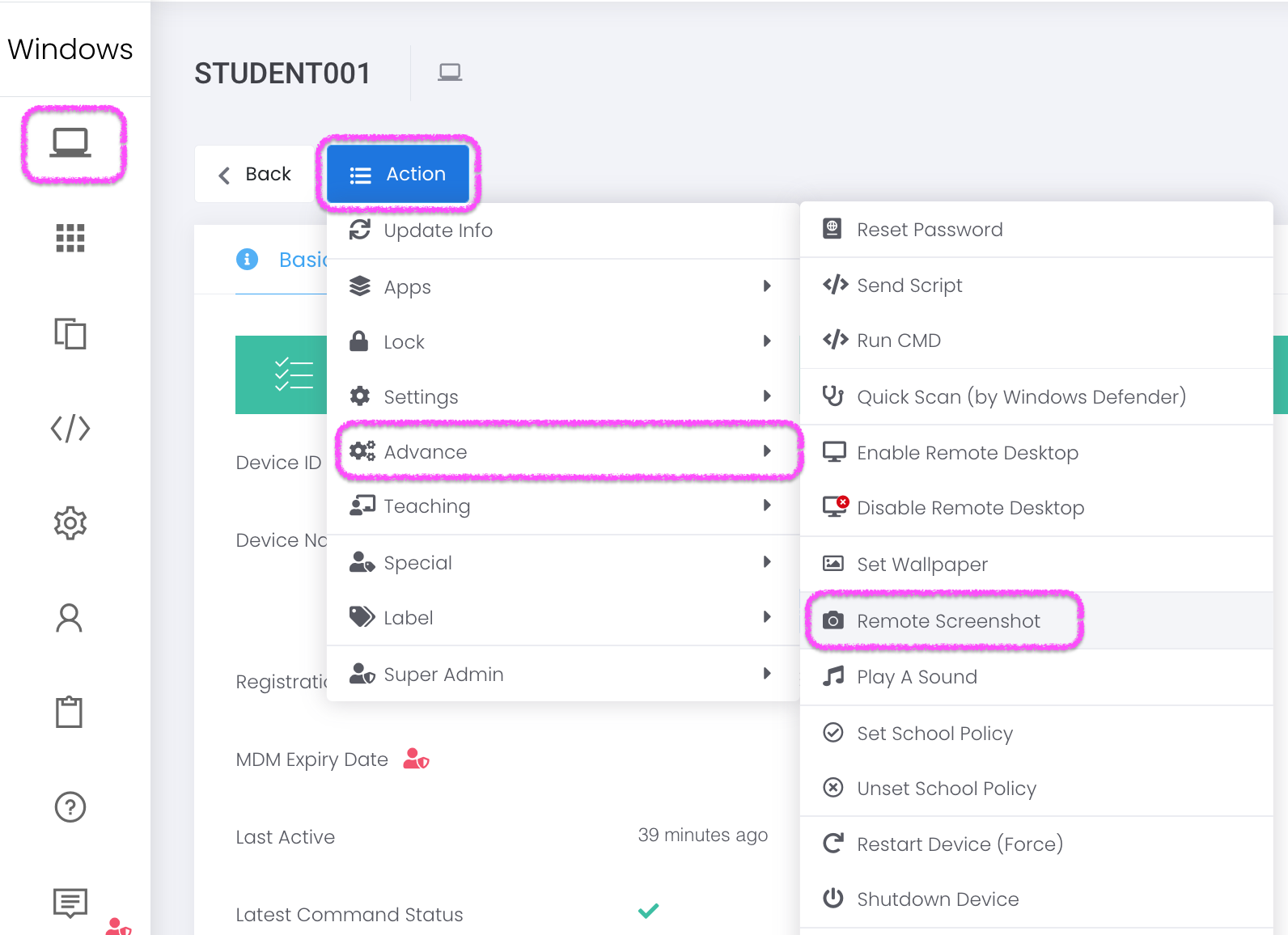
In ESP MDM Admin Console, go to Device > Device Management > Bulk Action > Advance > Remote Screenshot.
To view the screenshot, go to device detail page > Basic Info > Latest Commands > Find “RemoteScreenshot” command and the screenshot.

Teachers can temporarily suspend the use of students’ Windows devices by sending Blackscreen command to the target devices.
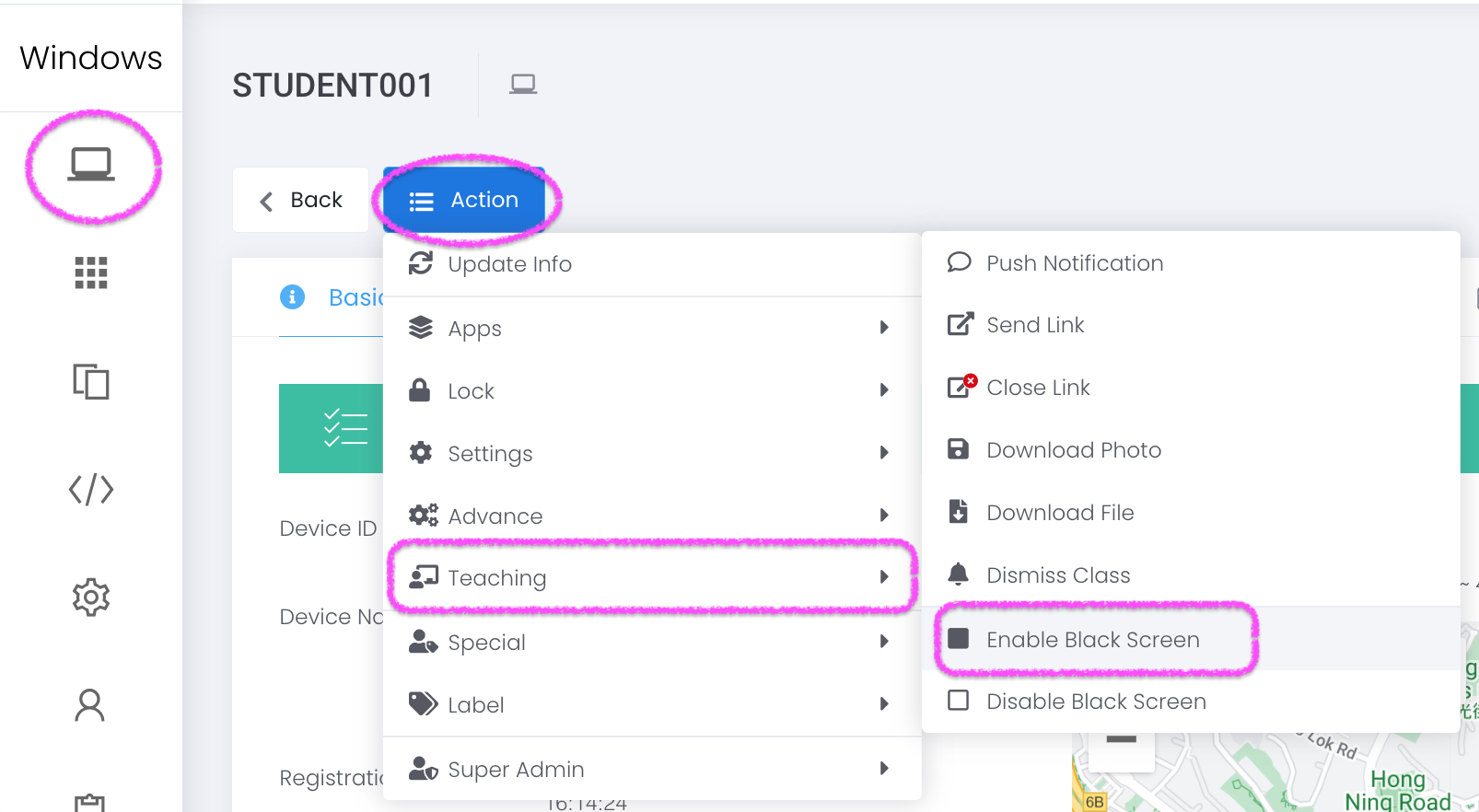
In ESP MDM Admin Console, go to Device > Device Management > Bulk Action > Teaching > Enable Black Screen > Select Target Devices > Confirm.
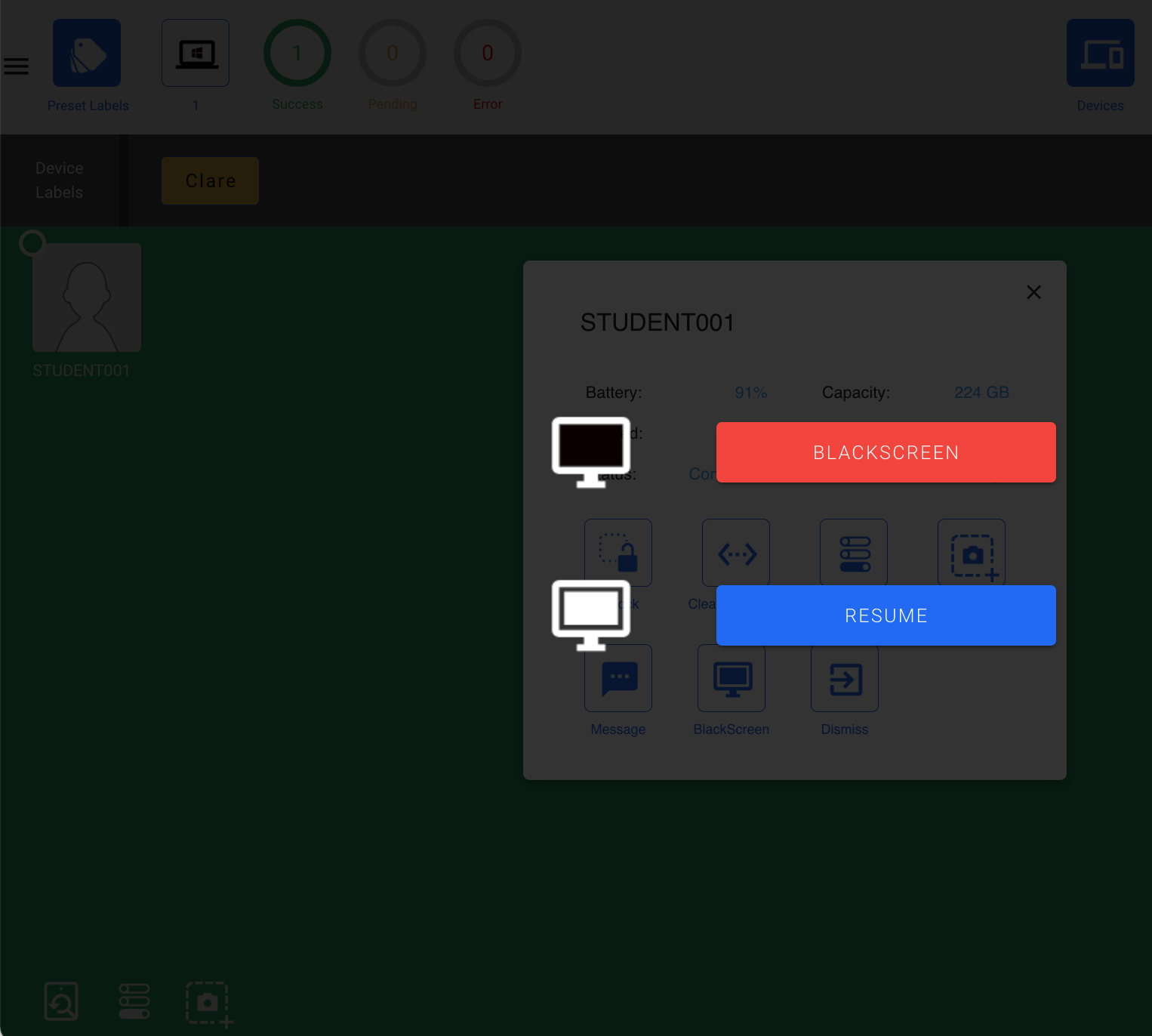
In TeacherPadPlus (https://www.eschoolpad.net/teacher) , go to Devices > Settings > Blackscreen > Blackscreen.
In ESP MDM Admin Console, go to Device > Device Management > Bulk Action > Teaching > Enable Black Screen > Select Target Devices > Confirm.
In TeacherPadPlus (https://www.eschoolpad.net/teacher) , go to Devices > Settings > Blackscreen > Blackscreen.